
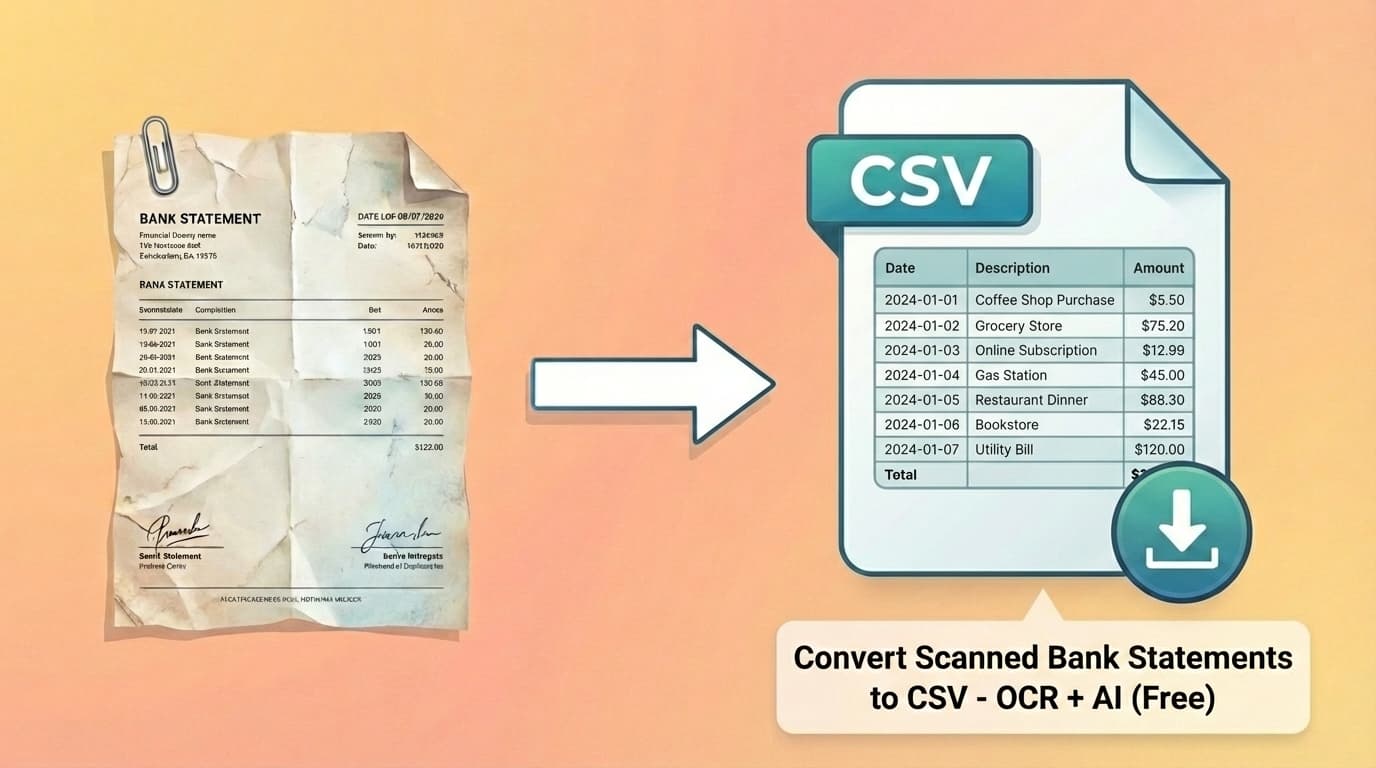
Scanned Bank Statement to CSV - AI OCR (Free)
Published on February 16, 2026 by CapyParse Team
Try it with your statement
Drop a PDF statement below to see the transactions extracted. Free, no signup.

Click to upload or drag & drop
your bank statement PDF
Select PDF filePDF only · up to 6 pages · 10 MB max
Need more pages or the Excel and QBO exports? Open the converter
You've got a paper bank statement. Maybe an old one from a filing cabinet, a printout from a branch visit, or a scan you made years ago. You need the transactions in a spreadsheet. You try dragging it into a PDF converter and... nothing. The tool can't find any text. That's because your statement is scanned, and most conversion tools simply can't handle it.
Quick Summary
Scanned bank statements are images, not text, so standard PDF converters can't read them. CapyParse uses AI-powered OCR to extract transactions from scanned PDFs, phone photos, and image-based statements from any bank. Upload your scan and get a clean CSV, Excel, or QBO file in seconds.
Scanned vs. Native PDFs: Why It Matters
Not all PDFs are created equal, and understanding the difference is the key to figuring out why your converter isn't working.
Native (digital) PDFs are generated directly by software, like when your bank creates a statement in their system and offers it for download. The text in these files is actual, selectable text data. You can click and drag to highlight words, copy-paste transaction descriptions, and search for amounts.
Scanned PDFs are essentially photographs wrapped in a PDF container. When you scan a paper document, the scanner takes a picture of each page. The resulting file looks like a bank statement, but to a computer it's just a grid of pixels, no different from a JPEG photo.
Quick test: Open your PDF and try to select text with your cursor. If you can highlight individual words, it's a native PDF. If clicking and dragging just draws a box or selects the entire page as an image, it's scanned.
| Native (Digital) PDF | Scanned PDF | |
|---|---|---|
| Text selectable? | Yes, click and highlight | No, it's an image |
| Typical source | Downloaded from online banking | Paper scanned at home/office, phone photo |
| Tabula / basic tools | Work fine | Fail completely |
| OCR required? | No | Yes |
| CapyParse support | Full support | Full support (via OCR) |
How OCR Converts Images to Data
OCR stands for Optical Character Recognition, technology that reads text from images. Think of it as teaching a computer to "see" letters and numbers the same way you do when you look at a printed page.
For a simple document like a letter, basic OCR works well enough. But bank statements are much harder. They have complex table layouts with aligned columns, small font sizes, dense numerical data where confusing a "3" with an "8" means getting the wrong amount, and mixed content like logos, account numbers, and fine print all on the same page.
Traditional OCR tools read characters one at a time without understanding what they're looking at. Modern AI-powered OCR, like what CapyParse uses, goes further. It understands the structure of a bank statement: where the date column is, which numbers are amounts vs. account numbers, and how rows of transactions are organized. This context-aware approach is why AI-powered tools achieve significantly higher accuracy on financial documents than generic OCR software.
Convert a Scanned Statement with CapyParse (Step-by-Step)
Getting your scanned statement into spreadsheet format takes about 60 seconds. Here's how:
Prepare your scan
Use your existing scanned PDF, or scan the paper statement now. A phone photo works too. Just use a document scanner app for a flat, cropped image. Save as PDF or PNG.
Upload to CapyParse
Go to the bank statement converter and drag in your file. CapyParse automatically detects that it's a scanned document and activates OCR.
Review extracted transactions
CapyParse shows you every extracted transaction in an interactive editor. Check that dates, descriptions, and amounts look right. Make corrections if needed with a single click.
Export as CSV, Excel, or QBO
Download your transactions in the format you need. CSV and Excel work with any spreadsheet app; QBO imports directly into QuickBooks.
Convert Your Scanned Statement Now
Upload any scanned bank statement and get a clean spreadsheet in seconds. 10 free pages, no credit card required.
Try CapyParse FreeTips for Better Scan Quality
The quality of your scan directly affects how accurately the OCR can read your statement. Here are four ways to get the best results:
DPI Setting
Scan at 300 DPI minimum. This is the standard for readable document scans. If your statement has small text or fine print (like account terms at the bottom), bump it up to 600 DPI. Anything below 200 DPI will likely produce errors in amounts and dates.
Lighting & Contrast
Place the statement on a flat, dark surface with even lighting. Avoid shadows across the page, as they make columns harder to read. If your scanner has a contrast or "document" mode, use it. Black text on white paper gives the best OCR results.
Phone Photos
Don't use your regular camera app. Use a document scanner app instead. iPhone's built-in Notes scanner, Google Drive's scan feature, or Microsoft Lens all auto-crop, straighten, and enhance the image. The difference in OCR accuracy is dramatic.
File Format
PDF or PNG are the best formats for scanned statements. Avoid JPEG if possible. JPEG compression adds artifacts (blurry edges, smudged text) that can confuse OCR, especially around small numbers. If you only have a JPEG, make sure it's high resolution.
Common Issues and How to Fix Them
Even with a good scan, you might run into issues. Here's what to watch for and how to resolve each one:
Watch Out For:
- Skewed or rotated scans: If the page went through the scanner at an angle, text rows won't align with the OCR grid. Straighten the image in your scanner software or Preview/Photos before uploading. Most document scanner apps do this automatically.
- Low-resolution images: If text looks pixelated when you zoom in, the resolution is too low. Re-scan at 300 DPI or higher. For phone photos, move closer and make sure the camera is in focus before shooting.
- Multi-page scans as separate images: If each page is a separate file (IMG_001.jpg, IMG_002.jpg, etc.), combine them into a single PDF before uploading. On Mac, select all images in Preview and export as PDF. On Windows, select all images, right-click, and "Print to PDF."
- Handwritten annotations: If someone has written notes, circled amounts, or added highlighter marks on the statement, these can interfere with OCR. CapyParse focuses on printed text and will typically skip handwriting, but heavy markings near transaction data may affect accuracy.
- Watermarks or stamps: "COPY" watermarks, bank stamps, or "VOID" markings printed over transaction data can interfere with amount extraction. If possible, obtain an unmarked copy of the statement. If not, CapyParse's interactive editor lets you correct any affected values.
What Accuracy to Expect
Let's be honest about what OCR can and can't do. Accuracy depends heavily on the quality of your source document.
| Source Quality | Expected Accuracy | Notes |
|---|---|---|
| Native (digital) PDF | 99%+ | Text is extracted directly, no OCR needed |
| Clean scan (300+ DPI) | 98-99% | Very reliable, occasional minor corrections needed |
| Phone photo (scanner app) | 95-98% | Good results if well-lit and properly cropped |
| Older scan (<200 DPI) | 90-95% | Review carefully, especially amounts and dates |
| Phone photo (regular camera) | 85-95% | Varies widely depending on lighting and angle |
The bottom line: even with less-than-perfect scans, you'll save significant time compared to manual data entry. And CapyParse's interactive editor makes it easy to review and correct any values the OCR didn't get quite right, so you can fix a few numbers in seconds rather than typing out hundreds of transactions by hand.
Always review before importing. Whether you're bringing data into QuickBooks, Excel, or another accounting tool, take a minute to scan through the extracted transactions. It's much easier to catch and fix an error in CapyParse's editor than to track down a discrepancy after it's in your books.
Frequently Asked Questions
Can I convert a photographed bank statement to CSV?
Yes. CapyParse uses OCR to extract transaction data from photographed bank statements, including phone photos. For best results, use a document scanner app (like iPhone Notes or Google Drive's scan feature) to capture a flat, well-lit image, and upload it as a PDF or PNG.
What scan quality do I need for accurate conversion?
For best results, scan at 300 DPI or higher. 600 DPI is recommended for statements with small text or fine print. Lower resolutions (150 DPI or below) may result in missed characters, especially for numbers like amounts and dates.
Do free tools like Tabula work with scanned bank statements?
No. Tabula and most free PDF-to-CSV tools only work with native (digital) PDFs where the text is selectable. They cannot read text from scanned images. You need an OCR-powered tool like CapyParse to convert scanned bank statements.
Can I convert scanned statements from any bank?
Yes. CapyParse uses AI-powered OCR that understands bank statement layouts dynamically. It works with scanned statements from any bank, including Chase, Bank of America, Wells Fargo, Citi, international banks, credit unions, and more, without needing pre-built templates.
How do I combine multiple scanned pages into one PDF?
On Mac, open all images in Preview, select all pages in the sidebar, then go to File > Export as PDF. On Windows, select all images in File Explorer, right-click, and choose Print > Microsoft Print to PDF. On iPhone, use the Notes app scanner which automatically creates multi-page PDFs. Most document scanner apps also combine pages into a single PDF.
Ready to Convert Your Scanned Statements?
Stop typing transactions by hand. Upload your scanned bank statement and get a clean CSV, Excel, or QBO file in seconds.
Try CapyParse Free10 free pages. No credit card required. View pricing for higher volumes.
Related Articles
Best Bank Statement to CSV Converters in 2026
Side-by-side comparison of the top 10 conversion tools.
How to Convert Chase Bank Statement to CSV, Excel, and QBO
Complete guide for Chase checking, Sapphire, Freedom, and Ink Business statements.
How Do I Download a Bank Statement to a CSV File?
Step-by-step PDF to CSV guide with QuickBooks import instructions.
How to Convert QBO to CSV: A Complete Guide
Convert QBO and OFX files into clean CSV spreadsheets.