
10 Best Bank Statement to CSV Converters (Tested 2026)
Published on July 9, 2026 by CapyParse Team
Try it with your statement
Drop a PDF statement below to see the transactions extracted. Free, no signup.

Click to upload or drag & drop
your bank statement PDF
Select PDF filePDF only · up to 6 pages · 10 MB max
Need more pages or the Excel and QBO exports? Open the converter
Converting bank statement PDFs into usable spreadsheet data shouldn't be this hard — but it is. Banks love PDFs, and your accounting software needs CSV. We tested 10 of the most popular bank statement conversion tools on real statements from Chase, Bank of America, Wells Fargo, Citi, and several international banks to find out which ones actually deliver accurate results without wasting your time.
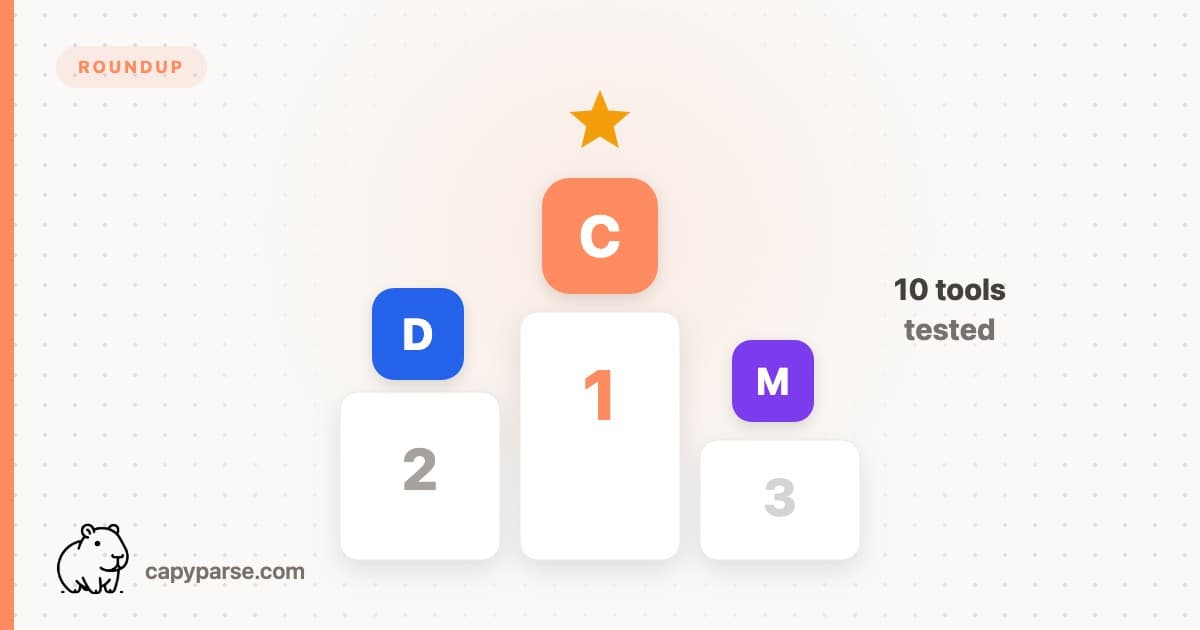
Our #1 Pick: CapyParse
After testing all 10 tools, CapyParse came out on top for overall accuracy, ease of use, and value. It uses AI to handle virtually any bank format — including scanned PDFs. 10 free pages included, no credit card required.
How we tested: We ran identical sets of bank statements (12 PDFs from 6 different banks, including both native and scanned documents) through each tool. We measured extraction accuracy, processing speed, ease of use, and export format quality. Pricing was evaluated as of July 2026.
Quick Comparison Table
| Tool | Type | Best For | Starting Price | Free Tier | Scanned PDFs |
|---|---|---|---|---|---|
| CapyParse | Cloud | Best overall | $29/mo | 10 pages free | Yes (OCR) |
| DocuClipper | Cloud | Large bank library | $20/mo (60 pages) | 120 pages, 14 days | Yes (OCR) |
| Bank2CSV | Desktop | One-time purchase | $49 one-time | Trial | No |
| MoneyThumb | Desktop | Wide bank support | $25/mo | Limited trial | Limited |
| Nanonets | Cloud/API | Enterprise/API | Custom | 500 pages free | Yes (OCR) |
| Tabula | Desktop (OSS) | Free/open-source | Free | Unlimited | No |
| Parseur | Cloud | Email-based parsing | $39/mo | Limited trial | Yes (OCR) |
| Able2Extract | Desktop | General PDF conversion | $170 one-time | 7-day trial | Yes (OCR) |
| PDFTables | Cloud | Simple table extraction | $20/50 pages | Limited trial | Limited |
| Adobe Acrobat Pro | Desktop/Cloud | Already-subscribed users | $23/mo | 7-day trial | Yes (OCR) |
Try the #1-Ranked Converter
Upload your bank statement and see why CapyParse leads the pack. 10 free pages, no credit card required.
Try CapyParse FreeDetailed Reviews
1. CapyParse — Best Overall
CapyParse is a cloud-based bank statement converter that uses AI-powered extraction to convert PDF statements from virtually any bank into clean CSV, Excel, or QBO files. Unlike template-based tools, CapyParse's model understands statement layouts dynamically — meaning it works on the first upload without needing to "train" it on your bank's format.
In our testing, CapyParse delivered the highest accuracy across both native and scanned PDFs. It correctly handled Chase checking statements, Bank of America credit cards, a scanned Wells Fargo statement, and an international HSBC PDF without any configuration. Multi-account statements were automatically separated into individual exports.
Key Features:
- AI-powered extraction — no templates, works with any bank format
- OCR for scanned and photographed statements
- CSV, Excel (.xlsx), and QBO export formats
- Automatic multi-account separation
- Interactive review and editing before export
- Batch upload for processing multiple statements at once
Pros
- Highest accuracy in our tests (99%+)
- No setup or templates — upload and go
- Handles scanned PDFs excellently
- Free tier available (10 pages)
Cons
- Cloud-only (no desktop version)
- Financial documents only, not general PDF parsing
Pricing: 10 free pages to start. Starter: $29/mo (150 pages). Firm: $79/mo (600 pages, priority processing). One-time credit packs from $5 for 20 pages. Enterprise: Custom.
Best for: Accountants, bookkeepers, and anyone who needs reliable, high-accuracy statement conversion without technical setup.
2. DocuClipper — Best for Template Library
DocuClipper is one of the more established names in bank statement conversion. It uses a template-based approach with a large library of pre-built templates for major banks. If your bank is in their library, setup is minimal. If not, you can create custom templates — though this takes time.
Pros
- Large pre-built template library
- OCR support for scanned documents
- Discounted annual billing ($20/mo)
Cons
- Template-based — may fail on unsupported formats
- Custom template creation is time-consuming
- Accuracy depends on template match quality
Pricing: $29/mo for 60 pages ($20/mo billed annually). Business tier from $159/mo ($111/mo annual) for 640 pages.
Best for: Users who process statements from the same banks repeatedly and want a template-driven workflow.
3. Bank2CSV — Best Desktop Option
Bank2CSV is a Windows desktop application that converts bank statements to CSV, QIF, QFX, and OFX formats. It's one of the few tools that offers a one-time purchase instead of a monthly subscription, making it attractive for users who want to avoid recurring costs.
Pros
- One-time purchase — no recurring fees
- Files stay on your computer — no cloud upload
- Multiple output formats (CSV, QIF, QFX, OFX)
Cons
- Windows only — no Mac or web access
- No OCR for scanned statements
- Dated interface
Pricing: ~$49 one-time purchase.
Best for: Windows users who prefer local processing and want to avoid subscriptions.
4. MoneyThumb — Widest Bank Support
MoneyThumb has been around for years and offers several products (PDF2CSV, PDF2QBO, PDF2OFX) for converting bank statements. It has wide bank support built up over a long time and is a familiar name in the bookkeeping community.
Pros
- Long track record in the industry
- Supports many bank formats
- Direct QBO export for QuickBooks
Cons
- Separate products for each output format
- Limited OCR capabilities
- Interface feels outdated
Pricing: From ~$25/mo per product.
Best for: Bookkeepers who've used it for years and are comfortable with the workflow.
5. Nanonets — Best for Enterprise/API
Nanonets is an AI-powered document processing platform that goes far beyond bank statements. It can extract data from invoices, receipts, purchase orders, and more. Its bank statement extraction is solid, but it's designed primarily for large-scale, API-driven workflows.
Pros
- Powerful API for automation
- Generous free tier (500 pages)
- Handles multiple document types
Cons
- Overkill for simple statement conversion
- Requires technical setup for API usage
- Pricing is opaque at higher volumes
Pricing: Free for 500 pages. Paid plans are custom/enterprise.
Best for: Developers and enterprises building automated document processing pipelines.
Want to skip the rest and just try the best one?
Try CapyParse Free6. Tabula — Best Free Open-Source Option
Tabula is a free, open-source tool for extracting tables from PDFs. It runs locally on your machine (requires Java) and provides a browser-based interface for selecting table areas. It's a great option if you're on a tight budget and only deal with native (non-scanned) PDFs.
Pros
- Completely free and open-source
- Runs entirely on your local machine
- Works on Windows, Mac, and Linux
Cons
- No OCR — only works with digital/native PDFs
- Requires manual table area selection
- Struggles with complex multi-section statements
- Requires Java installation
Pricing: Free.
Best for: Tech-savvy users on a budget who only work with native PDFs.
7. Parseur — Best for Email-Based Workflows
Parseur takes a unique approach: it gives you a dedicated email address where you can forward documents. Parseur then automatically extracts the data and pushes it to your chosen destination (Google Sheets, Zapier, etc.). It's less of a manual "upload and convert" tool and more of an automated pipeline.
Pros
- Automated email-based workflow
- Integrations with Zapier, Google Sheets, etc.
- OCR support for scanned documents
Cons
- Requires template training for each bank format
- Not ideal for one-off conversions
- Higher price for what amounts to parsing
Pricing: From $39/mo.
Best for: Businesses that receive statements via email and want automated extraction without manual uploads.
8. Able2Extract — Best General PDF Tool
Able2Extract Professional is a full-featured PDF editor that happens to include table extraction. It can convert PDF tables to Excel, CSV, and other formats. However, it's a general-purpose PDF tool — not built specifically for bank statements, which means it doesn't understand statement-specific concepts like transaction categories or running balances.
Pros
- Full PDF editing suite included
- OCR for scanned documents
- Works on Windows, Mac, and Linux
Cons
- Not bank-statement-specific — generic table extraction
- Expensive for just statement conversion ($170)
- Requires manual cleanup of extracted data
Pricing: ~$170 one-time or subscription options.
Best for: Users who already need a PDF editor and want basic table extraction as a bonus.
9. PDFTables — Simplest Web-Based Extraction
PDFTables is a straightforward web tool: upload a PDF, get a spreadsheet. It uses automated table detection to convert PDF tables into CSV, Excel, or XML. It's simple and fast for basic tables but lacks the intelligence to handle complex bank statement layouts well.
Pros
- Very simple — upload and get results
- API available for developers
- Pay-per-page pricing
Cons
- Generic table extraction — not statement-aware
- Limited OCR support
- Often merges header rows with data
Pricing: From $20 for 50 pages. Volume discounts available.
Best for: Quick one-off conversions of simple, well-structured tables.
10. Adobe Acrobat Pro — The Baseline
Adobe Acrobat Pro is the standard PDF tool, and many people already have it. Its "Export PDF" feature can convert PDFs to Excel or Word, and it includes OCR for scanned documents. However, it was never designed for bank statement extraction — it treats all content as generic tables, which means you'll spend time cleaning up the output.
Pros
- You may already have it
- Good OCR engine
- Trusted brand
Cons
- Poor at bank statement extraction specifically
- Exports to Excel, not CSV or QBO
- Expensive subscription ($23/mo) for this use case
- Significant manual cleanup required
Pricing: $22.99/mo (annual plan).
Best for: Users who already pay for Acrobat Pro and only need occasional, rough conversions.
Which Converter Is Right for You?
Accountants and Bookkeepers
You need speed, accuracy, and the ability to process statements from many different banks. A cloud-based AI tool eliminates template management.
Recommended: CapyParse or DocuClipper
Small Business Owners
You process your own statements monthly and need reliable CSV or QBO output for QuickBooks. Simplicity matters more than volume pricing.
Recommended: CapyParse or Bank2CSV
Developers and Enterprises
You're building an automated pipeline and need API access to process statements at scale. Integration flexibility is key.
Recommended: Nanonets or Parseur
Budget-Conscious Users
You're looking for the cheapest (or free) way to extract data from a bank statement. You're willing to trade some convenience for cost savings.
Recommended: Tabula (free) or CapyParse (10 free pages)
What We Tested
To make this comparison fair, we tested each tool on the same set of 12 bank statement PDFs:
- 6 native (digital) PDFs: Chase checking, Bank of America credit card, Wells Fargo savings, Citi business checking, Capital One credit card, and a local credit union
- 4 scanned PDFs: Photographed statements and documents scanned at 200/300 DPI
- 2 multi-account PDFs: Combined statements with checking + savings or business + employee cards
We measured: extraction accuracy (correct transactions / total transactions), processing speed, ease of use (time from upload to usable output), and output quality (properly formatted columns, correct data types, no merged cells).
See the Results for Yourself
Upload your own bank statement and compare the output quality. 10 free pages, no credit card required.
Try CapyParse FreePrivacy and Security
Bank statements contain sensitive financial data, so security matters when choosing a converter. Here's what to consider:
CapyParse uses TLS encryption for all uploads, stores your documents securely in your account, and lets you delete any of them from your dashboard at any time.
Frequently Asked Questions
What is the best bank statement to CSV converter?
CapyParse is the best overall bank statement to CSV converter in 2026. It combines AI-powered extraction with 99%+ accuracy, handles scanned PDFs via OCR, supports virtually any bank format, and offers CSV, Excel, and QBO export — all through a simple web interface with no software to install.
Can I convert bank statements to CSV for free?
Yes. Several tools offer free tiers. CapyParse includes 10 free pages to start. Tabula is completely free and open-source but requires manual setup and struggles with scanned PDFs. Most commercial tools offer limited free trials.
How accurate are bank statement converters?
The best AI-powered converters like CapyParse achieve 99%+ accuracy on native (digital) PDFs. Accuracy on scanned or photographed statements depends on image quality but typically ranges from 95-99% with good OCR tools. Basic table-extraction tools like Tabula or Adobe Acrobat may drop below 90% on complex statement layouts.
Do bank statement converters work with scanned PDFs?
Not all of them. Tools like CapyParse, DocuClipper, and Nanonets include OCR (Optical Character Recognition) to read text from scanned or image-based PDFs. Free tools like Tabula and basic PDF converters only work with native (digital) PDFs where the text is selectable.
Can I convert bank statements to Excel format?
Yes. Most bank statement converters support both CSV and Excel (.xlsx) export. CapyParse, DocuClipper, Bank2CSV, and Able2Extract all offer Excel output. For multi-account statements, Excel is often preferred since each account can go on a separate sheet.
Is it safe to upload bank statements to online converters?
Reputable cloud-based converters like CapyParse use encrypted connections (TLS) and follow best security practices. However, if you handle highly sensitive data, consider desktop tools like Bank2CSV or Tabula that process files locally. Always check the privacy policy before uploading financial documents.
What banks are supported by statement converters?
The best converters are format-agnostic and work with virtually any bank. CapyParse uses AI to understand any statement layout rather than relying on rigid templates. It supports all major U.S. banks (Chase, Bank of America, Wells Fargo, Citi, etc.) plus international banks and credit unions.
Have QBO or OFX files instead of PDFs?
If your bank exports transactions as QBO or OFX files, you can convert them to CSV or Excel instantly with our free QBO to CSV converter. It runs entirely in your browser — no signup, no uploads, 100% private.
Ready to Convert Your Bank Statements?
Try CapyParse free and save hours on manual data entry. 10 free pages, no credit card required.
Try CapyParse Free10 free pages. No credit card required. View pricing for higher volumes.
Related Articles
How to Convert Chase Bank Statement to CSV, Excel, and QBO
Complete guide for Chase checking, Sapphire, Freedom, and Ink Business statements.
How Do I Download a Bank Statement to a CSV File?
Step-by-step PDF to CSV guide with QuickBooks import instructions.
How to Convert QBO to CSV: A Complete Guide
Convert QBO and OFX files into clean CSV spreadsheets.