
Bank Statement Conversion for Accountants and Bookkeepers (2026)
Published on March 8, 2026 by CapyParse Team
Try it with your statement
Drop a PDF statement below to see the transactions extracted. Free, no signup.

Click to upload or drag & drop
your bank statement PDF
Select PDF filePDF only · up to 6 pages · 10 MB max
Need more pages or the Excel and QBO exports? Open the converter
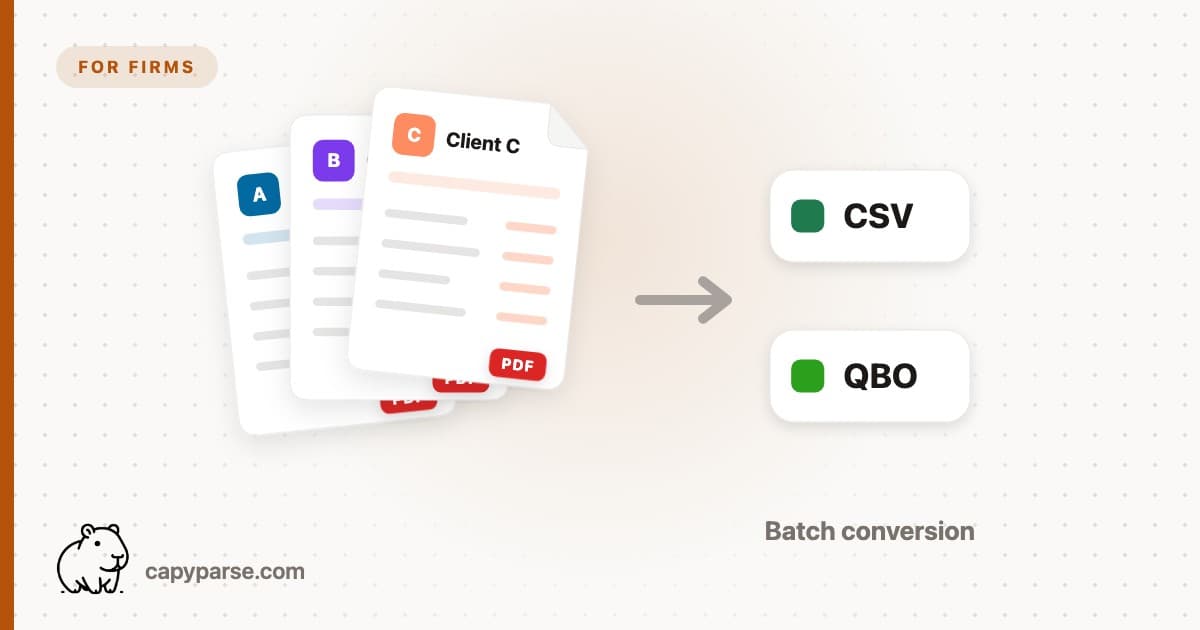
Accountants and bookkeepers spend a disproportionate amount of time converting bank statement PDFs into usable data. Whether you are reconciling monthly transactions, preparing tax returns, or supporting an audit, the process is the same: open a PDF, extract the transaction data, and get it into your accounting software. It is repetitive, manual, and error-prone -- and it scales badly when you are managing dozens of clients. This guide covers the most efficient workflows for professional bank statement conversion in 2026, from manual methods to AI-powered tools that can process an entire month's statements in minutes.
Quick Summary
Most accounting firms waste 5 to 15 hours per month on manual data entry from bank statements. AI-powered conversion tools like CapyParse can reduce this to minutes -- batch-upload client PDFs, review extracted transactions with confidence scores, and export as CSV, Excel, or QBO ready for import into QuickBooks, Xero, or any accounting platform.
The Bank Statement Problem for Accounting Firms
Bank statement conversion sounds simple in theory: take the data from a PDF and put it in a spreadsheet. In practice, every accounting professional knows the pain points that make this one of the most time-consuming administrative tasks in the profession.
Why It Is So Painful
Clients provide PDFs, not CSVs. Most clients download their statements from online banking as PDF files or, worse, hand you scanned paper copies. Very few clients know how to export transaction data as CSV or OFX files directly from their bank. That means the conversion burden falls on you.
Every bank uses a different format. Chase statements look nothing like Bank of America statements. Wells Fargo uses different column layouts than PNC. Credit union statements often have unique formatting that generic tools cannot parse. When you manage 15 or 20 clients, you are dealing with statements from a dozen or more banks, each with its own layout quirks.
Scanned documents add another layer of difficulty. Older statements, statements from smaller banks, and anything a client photographed on their phone arrive as flat images embedded in a PDF. There is no selectable text, which means copy-paste and basic PDF tools are useless. You need OCR to read these, and consumer OCR tools frequently mangle financial data -- transposing digits, misreading decimal points, or confusing columns.
Volume spikes at the worst times. Month-end close, quarterly reviews, and tax season all create surges in statement processing volume. The last thing you want during a busy January is 80 bank statement PDFs sitting in your inbox waiting to be manually typed into spreadsheets.
Accuracy is non-negotiable. Unlike many data entry tasks where a small error is inconvenient, a miskeyed bank transaction throws off your entire reconciliation. One transposed digit in an amount means your books do not balance, and tracking down the discrepancy costs more time than the original entry. For audit-ready work, every number must be verifiable.
Common Workflows (and Their Limitations)
Accounting firms typically rely on one of four approaches to get bank statement data into their systems. Each has trade-offs in speed, accuracy, and scope:
| Method | Speed | Accuracy | Scanned PDF Support | Cost |
|---|---|---|---|---|
| Manual data entry | 15-30 min per statement | High (but error-prone at volume) | Yes (manual) | Staff time ($25-50/hr) |
| Bank feeds (Plaid/Yodlee) | Automatic | High | N/A | Included in software |
| Copy-paste from PDF | 10-20 min per statement | Low (columns misalign) | No | Free |
| AI-powered conversion (CapyParse) | Under 1 min per statement | High (with confidence scores) | Yes (OCR) | 10 free pages, then paid |
Manual data entry and copy-paste are the most common approaches in smaller firms, but they do not scale. Bank feeds are excellent when they work, but they have significant gaps that force accountants back to manual processing. Let's examine why.
Why Bank Feeds Are Not Always Enough
Bank feeds through services like Plaid and Yodlee are built into QuickBooks, Xero, and most modern accounting platforms. When they work, they are seamless: transactions flow in automatically and you just need to categorize and reconcile. But experienced accountants know that bank feeds have real limitations that frequently require a fallback to manual statement processing:
- Limited transaction history. Most bank feeds through Yodlee only pull 90 days of transaction history. When you first connect a feed, you get at most 90 days of lookback. If a client comes to you mid-year and needs January through June reconciled, the feed cannot help with older months.
- Connection breaks and consent expiration. Bank feed connections break regularly. Plaid-based connections require consent renewal every 90 days under Open Banking regulations. When a connection drops and goes unnoticed for a few weeks, you have a gap in your transaction data that must be filled from PDF statements.
- Not all banks are supported. Community banks, credit unions, and smaller regional institutions are often not available through Plaid or Yodlee. If your client banks with a local institution, bank feeds simply are not an option.
- Clients may not grant access. Some clients are uncomfortable giving their accountant or bookkeeper direct access to their bank account via a data aggregator. They would rather download a PDF statement and email it to you. This is especially common with new clients and privacy-conscious business owners.
- Useless for historical statements and audits. Audit support often requires reconciling years of bank activity. You cannot get 2022 transactions through a bank feed connected in 2026. The only source for historical data is PDF statements, and those statements need to be converted into structured data to perform the reconciliation.
The bottom line is that every accounting firm, regardless of how well their bank feeds work, still regularly needs to convert PDF bank statements into usable data. The question is how efficiently you can do it.
What to Look for in a Conversion Tool
If you are evaluating bank statement conversion tools for your practice, these are the capabilities that matter most for professional use. A tool that lacks any of these will create friction in your workflow:
- Batch processing. You need to upload multiple statements at once -- ideally all of a client's statements for the month or quarter in a single batch. One-at-a-time processing wastes time on file management overhead.
- Scanned PDF support. Clients will send you scanned documents. If your tool cannot read them, you are back to manual data entry for those statements. OCR capability is essential.
- QBO export for QuickBooks. If your firm uses QuickBooks (and most do), native QBO file export eliminates the extra step of formatting CSV data for import. Direct QBO output means the transactions are ready to match and categorize immediately. See our guide on importing bank statements into QuickBooks for the full workflow.
- Accuracy with confidence scores. Professional work demands verifiable accuracy. Confidence scores on each extracted field let you focus your manual review time on the entries that need attention rather than spot-checking everything.
- Multiple bank format support. Your tool should handle any bank's statement layout without requiring templates or manual configuration. You should not need to set up a new profile every time a client switches banks or opens a new account.
- Data privacy and security. You are handling client financial records. The tool must process data over encrypted connections and should not permanently retain uploaded documents. Look for clear data handling policies before entrusting client statements to any platform.
How CapyParse Fits the Accounting Workflow
CapyParse is built for exactly this use case -- turning stacks of bank statement PDFs into clean, structured data ready for your accounting software. Here is what a typical workflow looks like for an accounting firm:
Step 1: Receive Client Statements
Your client emails you their monthly bank statements as PDF attachments, uploads them to a shared folder, or you download them from the client's online banking portal. These may be digital PDFs, scanned documents, or a mix of both.
Step 2: Batch Upload to CapyParse
Go to CapyParse and upload all the statements at once. There is no need to sort by bank or format first -- the AI recognizes each statement's layout automatically. Scanned and digital PDFs can be mixed in the same batch.
Step 3: Review Extracted Data
CapyParse displays the extracted transactions with dates, descriptions, amounts, and running balances. Each field carries a confidence score, and you can click any entry to see its source location in the original PDF. Focus your review on low-confidence entries rather than checking every single line.
Step 4: Export as CSV, Excel, or QBO
Download the extracted data in the format your accounting software requires. CSV works universally, Excel is convenient for ad-hoc analysis, and QBO files import directly into QuickBooks without any reformatting. You can also learn about converting QBO to CSV if you need both formats.
Step 5: Import into Accounting Software
Import the converted data into QuickBooks, Xero, FreshBooks, Wave, or whatever platform your firm uses. The transactions are clean, properly formatted, and ready for categorization and reconciliation.
Process Your Clients' Statements in Minutes
Batch-upload bank statement PDFs from any bank and export clean, structured data as CSV, Excel, or QBO -- ready for QuickBooks, Xero, or any accounting platform.
Try CapyParse Free10 free pages. No credit card required.
Use Cases for Accounting Professionals
Bank statement conversion touches nearly every part of an accounting practice. Here are the three most common scenarios where efficient conversion has the biggest impact:
Monthly Reconciliation
The bread and butter of bookkeeping. Every month, you need to match bank transactions against your general ledger entries. When bank feeds are not available or have gaps, you are working from PDF statements. Converting 20 to 40 statements per month manually costs a full day of staff time. With batch conversion, the same job takes under an hour, including review.
Tax Season Preparation
Tax season is a crunch period where every hour counts. Clients often arrive with a year's worth of unsorted bank statements. You need to process 12 months of transactions across multiple accounts to categorize expenses, verify income, and prepare accurate returns. AI-powered conversion lets you process an entire year of statements in minutes instead of spending a full day per client on data entry.
Audit Support
Audits require verifiable transaction records, often spanning multiple years. The bank statements involved are frequently historical -- scanned photocopies or PDFs from older periods that are not available through bank feeds. AI extraction with confidence scores gives you structured data from these documents while providing the traceability auditors demand. Each extracted value links back to its source in the original PDF.
Time and Cost Savings
The financial case for automated bank statement conversion is straightforward. Here is what the numbers look like for a typical bookkeeping firm managing 20 clients:
| Metric | Manual Data Entry | CapyParse |
|---|---|---|
| Time per statement | 15-30 minutes | Under 1 minute |
| Monthly volume (20 clients, 2 accounts each) | 40 statements | 40 statements |
| Total monthly processing time | 10-20 hours | Under 1 hour (including review) |
| Monthly labor cost (at $35/hr) | $350-700 | ~$35 |
| Annual hours saved | -- | 108-228 hours |
| Error rate | 2-5% (manual keying errors) | Under 1% (with confidence scoring) |
Those 108 to 228 hours per year represent real capacity. That is time your team can spend on higher-value work: advisory services, tax planning, client consultations, or simply taking on more clients without adding headcount. At a typical billing rate, reclaiming even half of those hours generates thousands of dollars in additional revenue.
Tips for Efficient Statement Processing
Whether you are just getting started with automated conversion or optimizing an existing workflow, these four practices will help you get the most out of your statement processing:
Batch by Client
Group all of a client's statements together before uploading. Process one client's full set of statements at a time rather than mixing statements from different clients. This keeps your output files organized and makes it easier to import the right transactions into the right company file in your accounting software.
Standardize Your Output Format
Pick one export format and use it consistently. If your firm runs on QuickBooks, export everything as QBO. If you use Xero or another platform, standardize on CSV with consistent column mapping. Having a single, predictable output format eliminates the guesswork when importing into your accounting software each month.
Verify with Confidence Scores
Do not try to manually verify every single extracted transaction. That defeats the purpose of automation. Instead, use confidence scores to identify the entries that need human attention. Review flagged items, spot-check a sample of high-confidence entries, and verify that beginning and ending balances match the statement. This gives you assurance without wasting time re-checking work the AI got right.
Archive Converted Files
Save both the original PDF and the converted output (CSV, QBO, or Excel) in your document management system. If a question comes up during an audit or a client dispute, you want to be able to pull up the original statement and show exactly how the data was extracted. This is basic record-keeping, but it is easy to overlook when you are processing high volumes quickly.
Frequently Asked Questions
How do accountants convert bank statements to CSV?
Accountants typically convert bank statements to CSV using one of three methods: manual data entry (typing transactions into a spreadsheet), bank feed integrations like Plaid or Yodlee (which pull transactions automatically but have limited history), or AI-powered conversion tools like CapyParse that extract data from bank statement PDFs and export it as CSV, Excel, or QBO files. For firms handling multiple clients, batch conversion with an AI-powered tool is the most efficient approach.
Can CapyParse handle statements from multiple banks?
Yes. CapyParse uses AI-powered extraction that adapts to any bank statement format without requiring templates or manual configuration. Whether your clients bank with Chase, Bank of America, Wells Fargo, regional banks, or credit unions, CapyParse recognizes the transaction table layout and extracts dates, descriptions, amounts, and balances accurately. You can batch-upload statements from different banks in a single session.
Is CapyParse secure enough for client financial data?
Yes. CapyParse processes files over encrypted connections and does not permanently store your uploaded documents. Files are processed in volatile memory and purged after conversion is complete. This makes it suitable for handling sensitive client financial data. For firms with strict data handling policies, CapyParse provides the security controls needed to maintain client confidentiality and meet professional obligations.
What output formats does CapyParse support for accounting software?
CapyParse exports converted bank statement data as CSV, Excel (XLSX), and QBO files. CSV and Excel are universally compatible with spreadsheet tools and most accounting platforms. QBO files can be imported directly into QuickBooks Online and QuickBooks Desktop without any reformatting. This covers the import requirements of QuickBooks, Xero, FreshBooks, Wave, Sage, and virtually every other accounting application.
How much time can accountants save with automated bank statement conversion?
Most accounting firms spend 5 to 15 hours per month on manual bank statement data entry and cleanup. With AI-powered conversion, the same volume of statements can be processed in under an hour, including review time. For a firm managing 20 or more clients, this translates to 40 to 50 hours saved per month -- time that can be redirected to advisory services, tax planning, or taking on additional clients. Over a year, the savings add up to hundreds of hours and thousands of dollars in recovered staff capacity.
Stop Wasting Hours on Manual Statement Entry
Upload your clients' bank statement PDFs and get clean, accounting-ready data in minutes. CSV, Excel, and QBO exports for any accounting platform.
Try CapyParse Free10 free pages. No credit card required. Compare pricing plans.
Related Articles
How to Extract Data from Bank Statements: 3 Methods Compared
Compare manual, open-source, and AI-powered extraction methods side by side.
How to Import Bank Statements into QuickBooks
Step-by-step guide for importing CSV, QBO, and Excel files into QuickBooks Online and Desktop.
Best Bank Statement to CSV Converters in 2026
Side-by-side comparison of the top conversion tools for accuracy, speed, and price.
Bank Statement Converter Pricing Comparison
Detailed pricing breakdown of the most popular statement conversion tools.