
Edit Bank Statement Transactions Before Exporting to CSV, Excel, or QBO
Published on March 17, 2026 by CapyParse Team
When you export bank statement transactions to CSV, Excel, or QBO, the raw data is rarely ready for your accounting software. Payee names are unreadable codes, categories are missing, and dates might have the wrong year. Most people export first and then spend an hour cleaning up in Excel. There is a better way: edit everything before you export, so the file you download is the file you actually need.
CapyParse's Export Editor sits between extraction and export. It gives you a spreadsheet-like view of your bank transactions with AI tools to clean payee names, assign categories, fix dates, and reverse signs -- then export to CSV, Excel, or QBO with all your changes included.
Quick Summary
- AI Payee/Memo: One click to turn raw bank descriptions into clean payee names with full details preserved in memo.
- AI Categorize: Automatically assign QuickBooks or custom categories to every transaction.
- Fix Dates & Reverse Signs: Bulk-correct years, months, or flip deposit/withdrawal signs.
- Export: Download as CSV, Excel, or QBO -- with all your edits included.
What Is the Export Editor?
The Export Editor is a spreadsheet-like interface built into CapyParse that sits between extraction and export. After CapyParse processes your bank statement PDF, you can open the Export Editor to review, clean up, and enhance the transaction data before downloading it.
To open it, select any processed document from your dashboard and click the Edit & Export CSV / QBO button in the right sidebar.
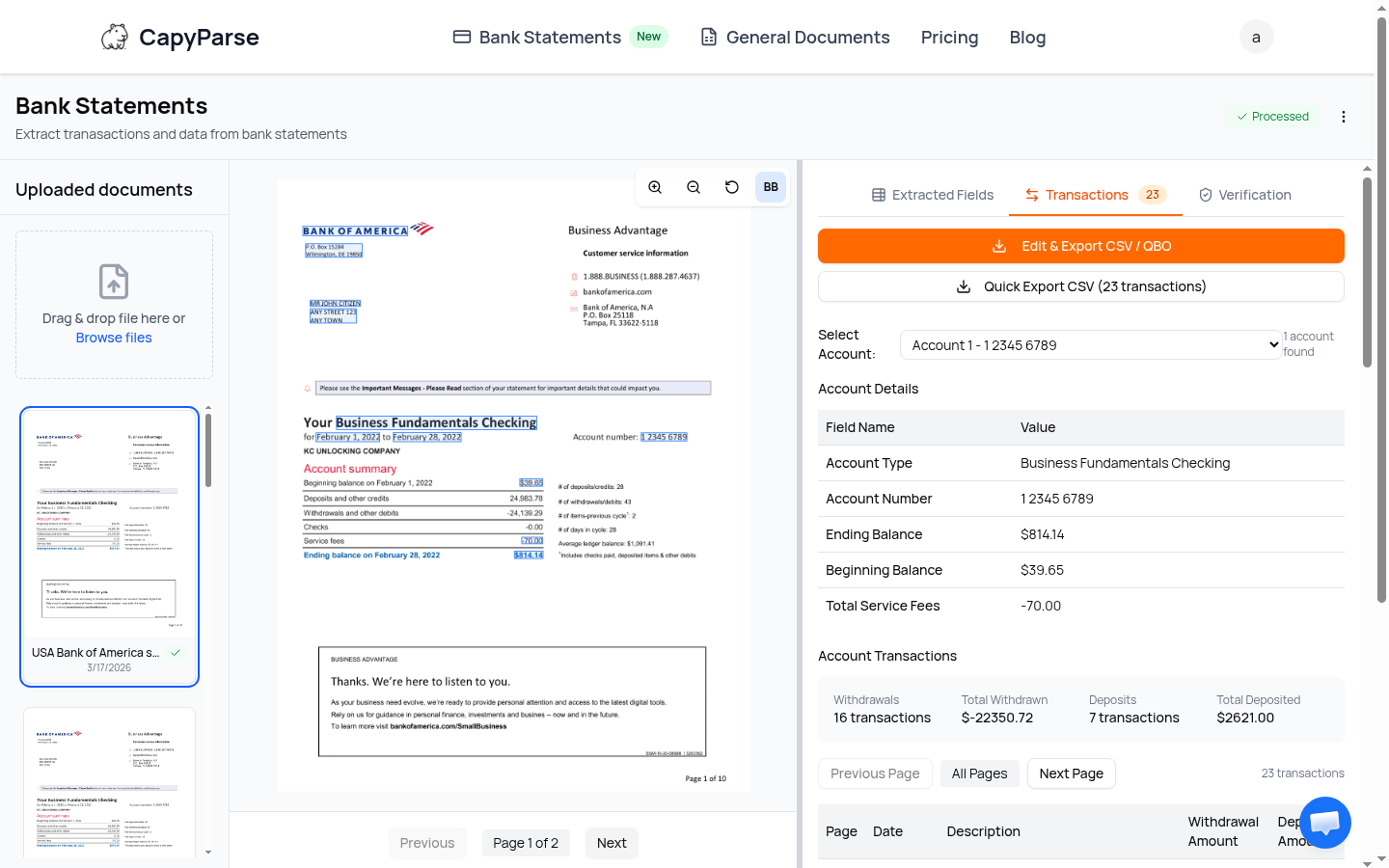
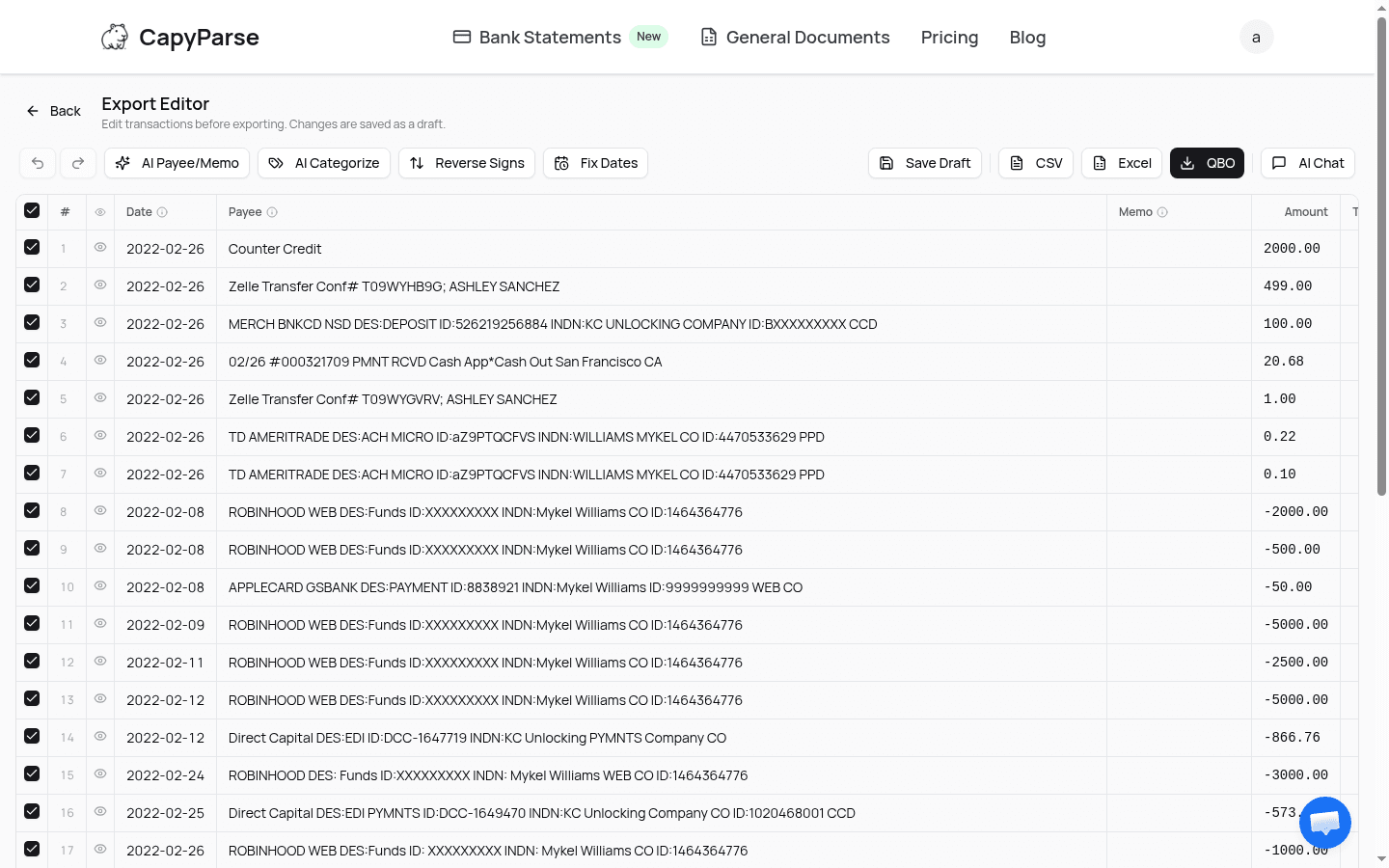
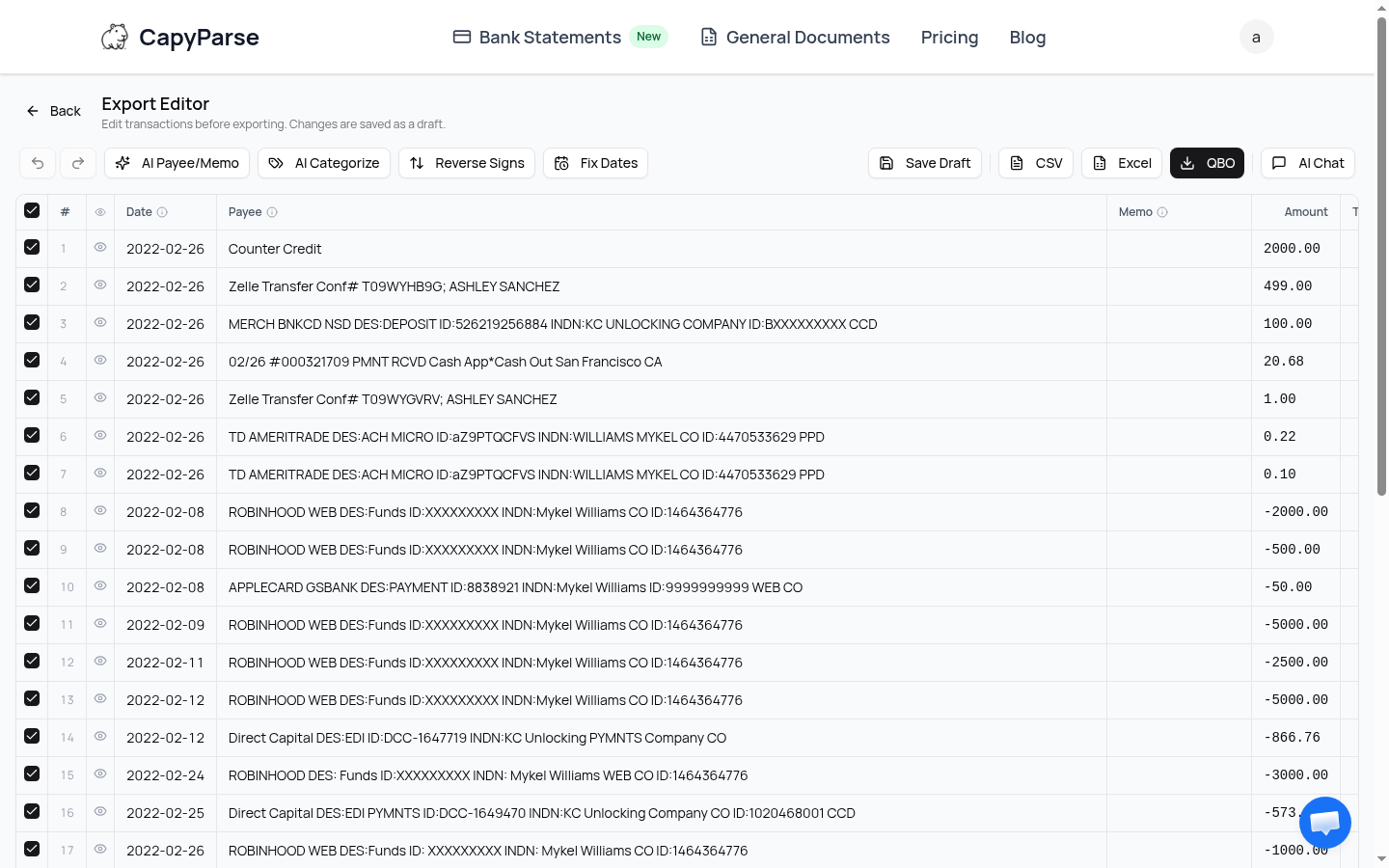
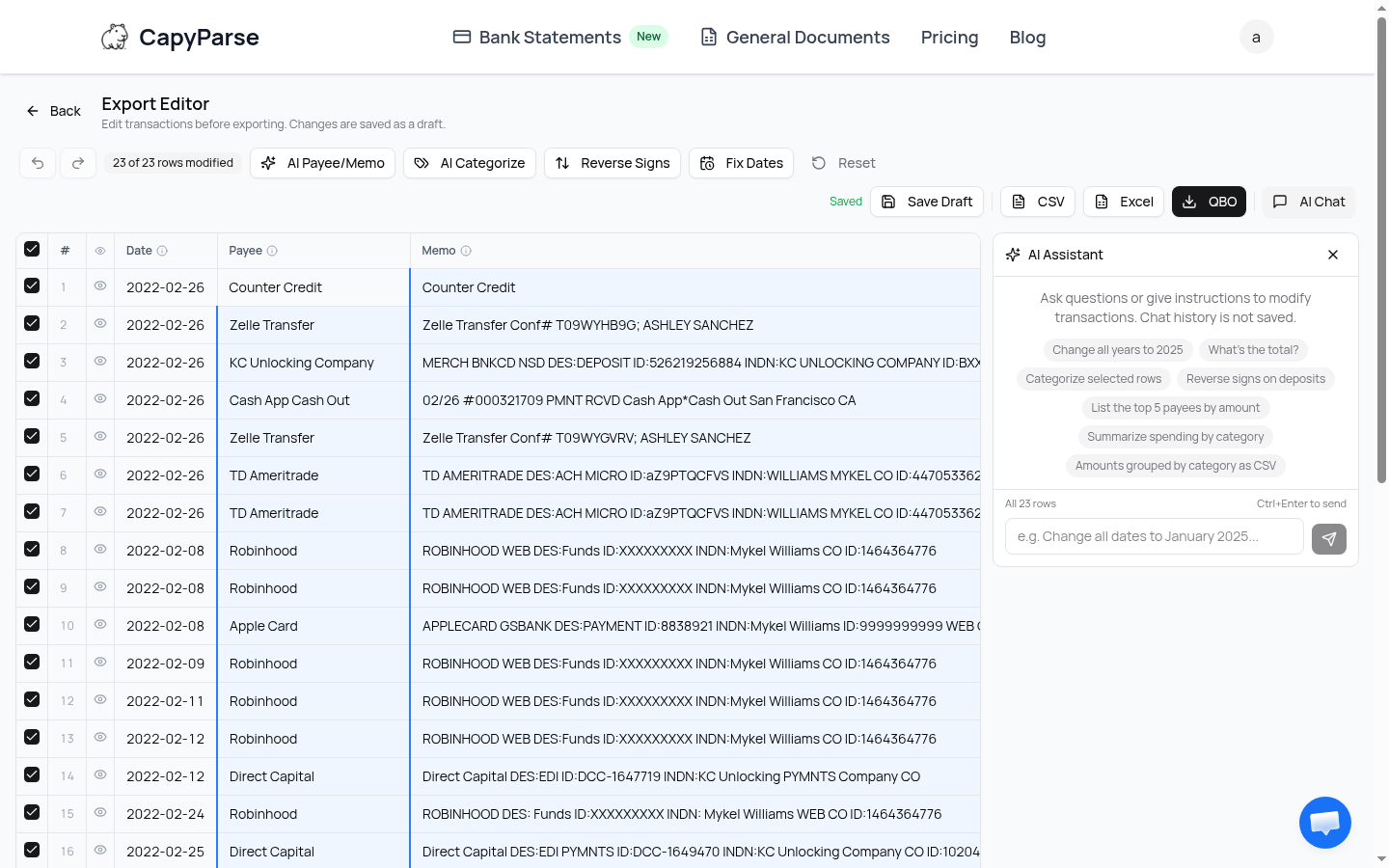
This opens a full-width editor where every transaction is displayed in an editable table. The toolbar across the top gives you access to AI-powered tools for bulk cleanup.
AI Payee/Memo: Clean Up Cryptic Descriptions
Bank transaction descriptions are notoriously messy. A simple Zelle transfer shows up as Zelle Transfer Conf# T09WYHB9G; ASHLEY SANCHEZ. A Robinhood withdrawal looks like ROBINHOOD WEB DES:Funds ID:XXXXXXXXX INDN:Mykel Williams CO ID:1464364776. These descriptions are useless in a bookkeeping context.
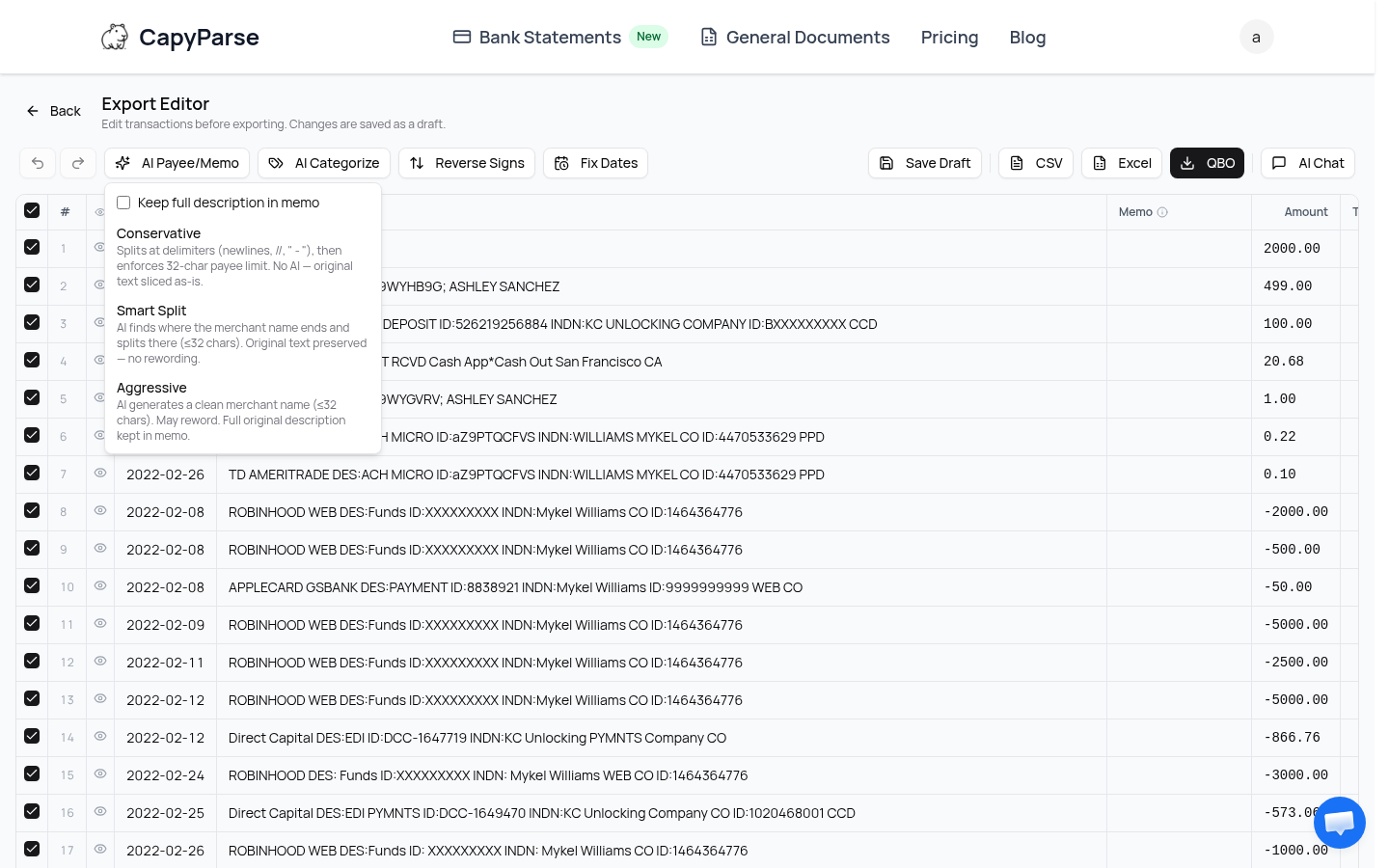
The AI Payee/Memo button splits each description into a clean payee name and a memo field that preserves the original text. You get two cleanup modes:
Conservative
Keeps more detail in the payee name. Good when you need to distinguish between similar transactions from the same vendor.
Aggressive
Strips payee names down to the essential vendor name. Ideal for clean bookkeeping where you want "Robinhood" instead of "Robinhood Web Des Funds".
After selecting a mode, the AI processes every transaction. Here is the result with Aggressive mode applied -- notice how "ROBINHOOD WEB DES:Funds..." became simply "Robinhood", and "Zelle Transfer Conf# T09WYHB9G; ASHLEY SANCHEZ" became "Zelle Transfer" with the full text moved to memo:
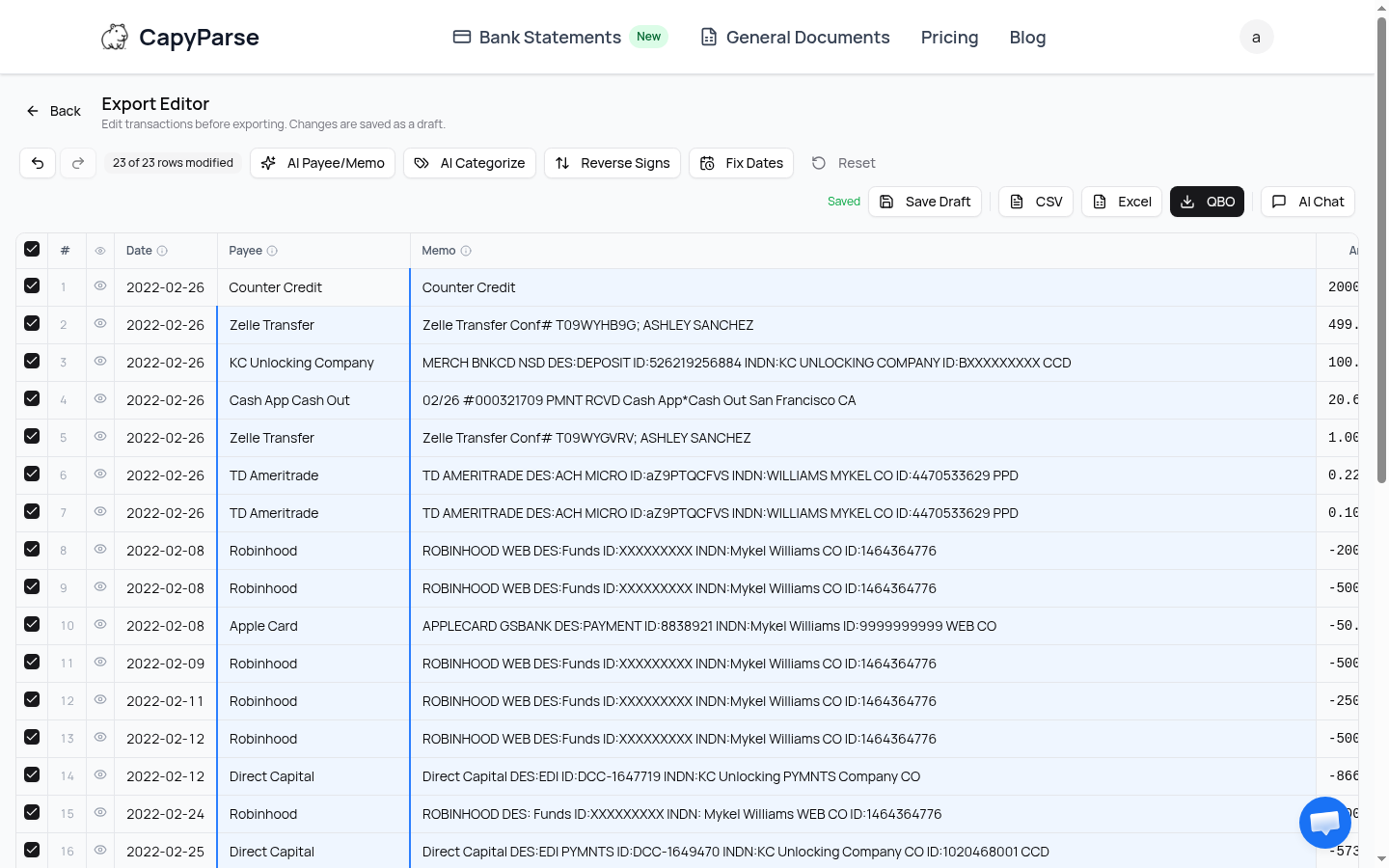
The original description is never lost -- it moves to the Memo column, so your audit trail stays intact.
AI Categorize: Assign Categories Automatically
Manually categorizing dozens (or hundreds) of transactions is one of the most tedious parts of bookkeeping. AI Categorize does it in seconds. Click the button and choose your category scheme:
QuickBooks Categories
Uses standard QuickBooks Online account categories. The AI maps each transaction to categories like Transfer, Repair & Maintenance, Other Investment Income, and more.
Custom Categories
Define your own chart of accounts or category list. The AI will map transactions to your custom categories instead of the QuickBooks defaults.
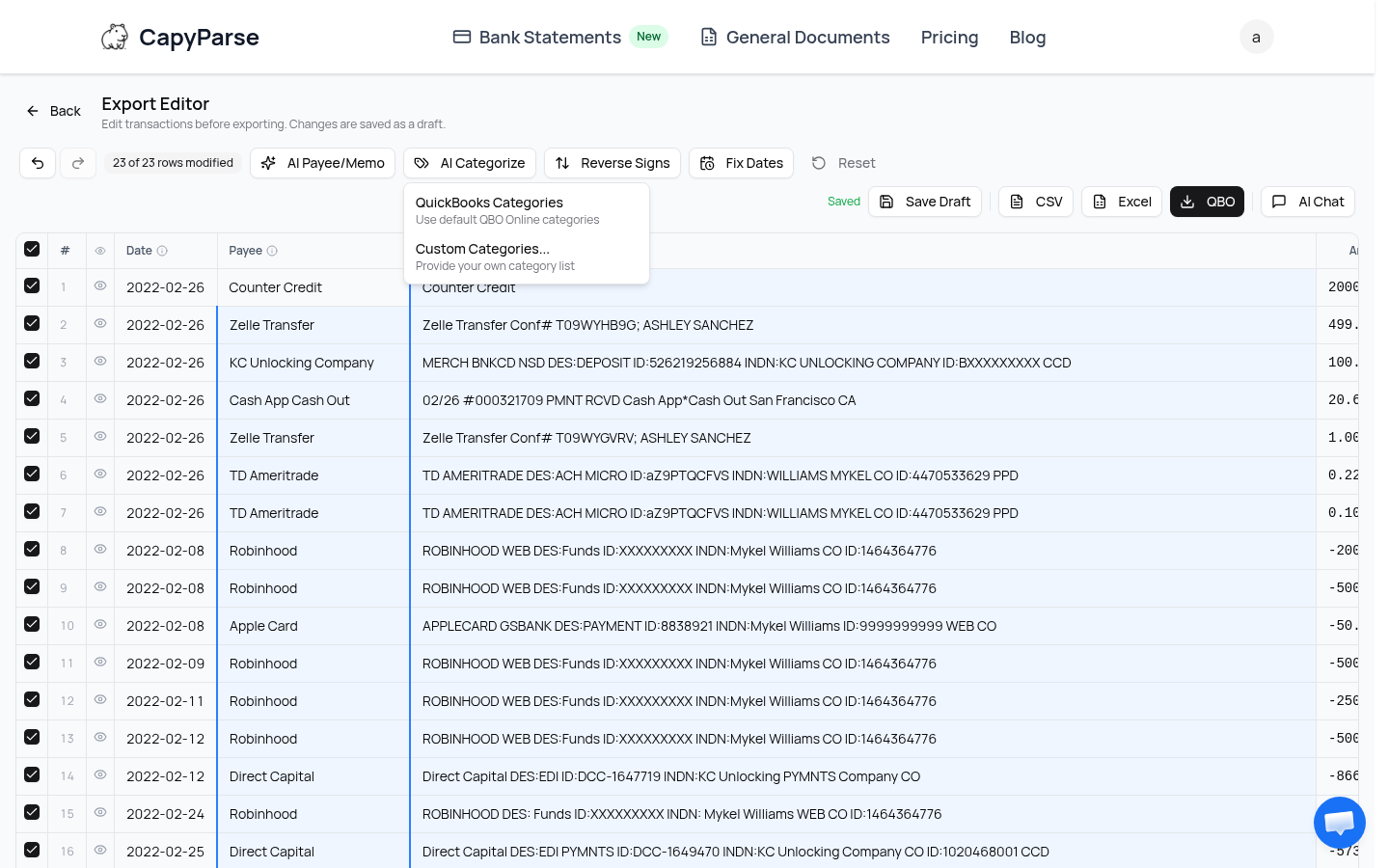
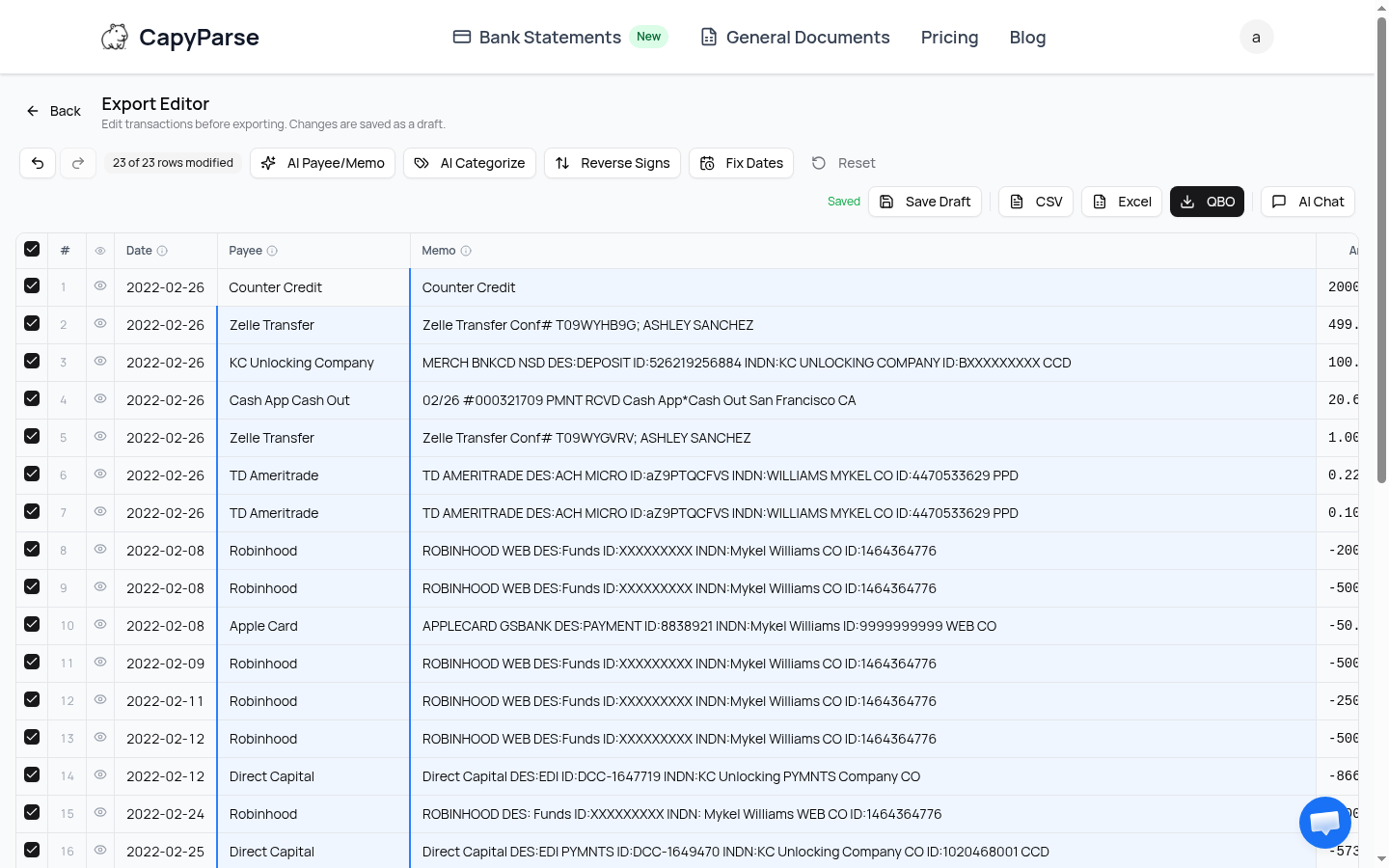
After categorization, every transaction has a category assigned. You can click any category cell to override it manually if the AI got one wrong.
Tip: Combine AI Payee + AI Categorize
Run AI Payee/Memo first, then AI Categorize. The categorization AI uses the cleaned payee names to make more accurate category assignments. Clean input produces better output.
Fix Dates: Correct Years and Months in Bulk
Date issues are common when converting bank statements. A statement that spans December to January might have all dates extracted as the same year. Scanned statements sometimes get the year wrong entirely. The Fix Dates tool lets you change the year or month across all transactions at once.
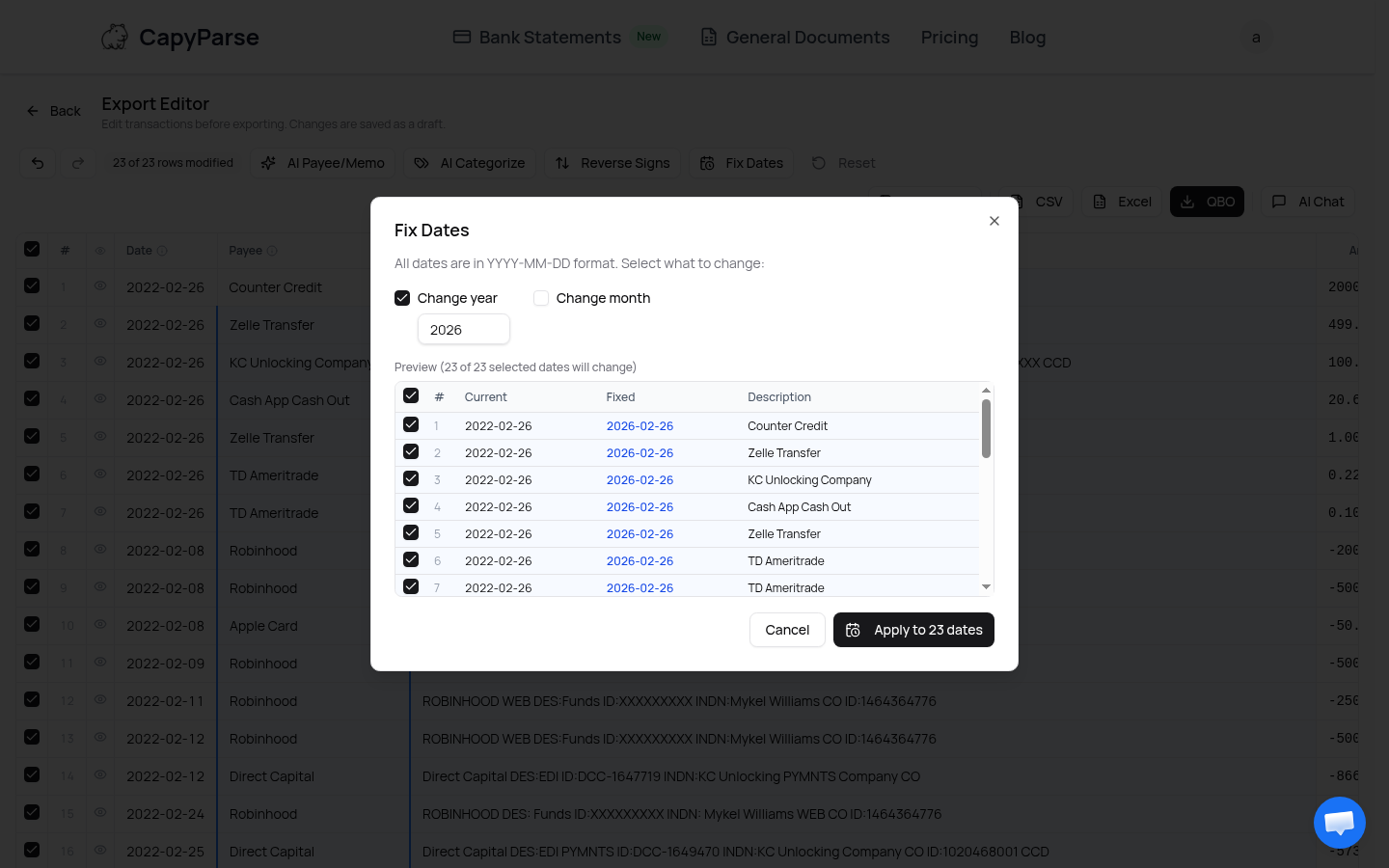
The dialog shows a preview of every date change before you apply it -- current date on the left, corrected date on the right. Nothing changes until you click Apply.
Reverse Signs: Flip Deposits and Withdrawals
Some accounting software expects deposits as negative and withdrawals as positive (or vice versa). Different banks also format amounts differently -- some show withdrawals as negative numbers, others show them as positive with a "W" type indicator. Reverse Signs flips every amount in one click. Click again to undo.
This is especially useful when importing into QuickBooks or Xero, where sign conventions can cause reconciliation errors.
Inline Editing, Add Row, and Save Draft
Every cell in the table is directly editable. Click any field to change a date, payee name, memo, amount, transaction type, or category. Beyond cell editing, you have:
Add Row
Insert a new transaction at the bottom of the table. Useful when you need to add a manual entry that was not in the original statement -- like a fee or adjustment.
Delete Row
Remove any transaction you do not need in the export. Click the red X icon on the right side of any row.
Save Draft
All your changes are automatically saved as a draft. Close the browser, come back tomorrow, and your edits are still there. Click Save Draft to save manually at any time.
Reset
Revert all changes back to the original extracted data. Useful if you want to start over with a different cleanup approach.
Export to CSV, Excel, or QBO
Once your data looks right, export it in the format you need. The toolbar has three export buttons:
| Format | Best For | Opens In |
|---|---|---|
| CSV | Spreadsheet analysis, data import, custom workflows | Excel, Google Sheets, Numbers, any text editor |
| Excel (.xlsx) | Direct use in Microsoft Excel with formatting preserved | Microsoft Excel, Google Sheets, LibreOffice |
| QBO | Importing into accounting software | QuickBooks, Xero, FreshBooks, Wave |
Every edit you have made -- cleaned payee names, assigned categories, corrected dates, added or removed rows -- is included in the export. What you see in the editor is exactly what you get in the file.
For more on QBO files, see our guide on how to convert QBO to CSV. If you are importing into specific software, check out our guides for QuickBooks, FreshBooks, and Wave.
AI Chat: Ask Questions About Your Data
The AI Chat button opens a sidebar assistant that has full context of your transaction data. You can ask it questions like "What is the total amount of Robinhood transfers?" or give it instructions like "Categorize all transactions over $1,000 as Large Expenses." It is a natural-language interface for working with your bank statement data.
Try the Export Editor
Upload a bank statement and clean up your transactions with AI before exporting to CSV, Excel, or QBO.
Get Started with CapyParseThe Full Workflow: Statement to Clean Export
Here is how it all fits together, from PDF upload to a bookkeeping-ready file:
Upload your bank statement PDF
CapyParse extracts all transactions, account details, and balances automatically.
Open the Export Editor
Click "Edit & Export CSV / QBO" to open the editable transaction table.
Run AI cleanup
Click AI Payee/Memo to clean descriptions, then AI Categorize to assign categories. Fix dates or reverse signs if needed.
Review and export
Make any manual adjustments, then export as CSV, Excel, or QBO. Import directly into your accounting software.
Frequently Asked Questions
Can I edit individual transactions before exporting?
Yes. Every cell in the Export Editor is directly editable. Click any date, payee, memo, amount, type, or category field to change it. You can also add new rows or delete existing ones. All changes are saved as a draft so you can come back later.
What does AI Payee/Memo cleanup do?
AI Payee/Memo uses artificial intelligence to extract clean, human-readable payee names from raw bank descriptions and move the full original text into the memo field. For example, "ROBINHOOD WEB DES:Funds ID:XXXXXXXXX" becomes payee "Robinhood" with the original text preserved in memo. You can choose Conservative or Aggressive cleanup modes.
Does AI Categorize work with QuickBooks categories?
Yes. AI Categorize offers a QuickBooks Categories option that assigns standard QuickBooks Online categories like Transfer, Repair & Maintenance, and Other Investment Income. You can also choose Custom Categories if you use your own chart of accounts. Categories can be manually overridden after assignment.
What export formats does the Export Editor support?
The Export Editor supports three formats: CSV for spreadsheet software like Excel and Google Sheets, Excel (.xlsx) for direct use in Microsoft Excel, and QBO for importing into QuickBooks, Xero, and other accounting software. All exports include every edit you have made in the editor.
What does Fix Dates do?
Fix Dates lets you bulk-correct the year or month on all transaction dates at once. This is useful when a statement spans a year boundary or when the extracted dates have an incorrect year. You see a preview of every change before applying it.
Stop Fixing Spreadsheets Manually
Upload your bank statement, let AI clean the data, and export a bookkeeping-ready file in minutes.
Try CapyParse FreeRelated Articles
How Do I Download a Bank Statement to a CSV File?
Complete guide to converting PDF bank statements into CSV format
Import Bank Statements into QuickBooks
Step-by-step guide to importing CSV and QBO files into QuickBooks
Bank Statement Conversion for Accountants
Workflow tips for accounting professionals handling client statements
How to Convert QBO to CSV
Convert QuickBooks QBO files to CSV for spreadsheet use