
How to Automate Bank Statement Processing for Accounting Firms
Published on March 30, 2026 by CapyParse Team
Try it with your statement
Drop a PDF statement below to see the transactions extracted. Free, no signup.

Click to upload or drag & drop
your bank statement PDF
Select PDF filePDF only · up to 6 pages · 10 MB max
Need more pages or the Excel and QBO exports? Open the converter
Anyone who's spent an afternoon re-keying three months of bank statements for a single client knows this pain. Clients email you PDFs, sometimes one, sometimes a year's worth at once, and you spend the next hour opening each file, squinting at transaction tables, and typing numbers into QuickBooks or Xero. One transposed digit and the reconciliation breaks. One missed transaction and the books don't balance. It's tedious, error-prone, and it doesn't scale. The good news: in 2026, you don't have to do it this way anymore.
What You'll Get from This Guide
A breakdown of the manual workflow, what automation actually looks like in practice, and an ROI calculation you can use to justify the switch. Most firms save 15 to 30 minutes per client per month, and the savings compound fast as your client base grows.
The Manual Process (And Why It Breaks)
You already know what this looks like. But putting numbers to each step makes the case for automation concrete.
Step 1: Collecting Statements from Clients
Clients send statements in every way imaginable. Some email PDFs. Others drop files in a shared folder or portal. A few hand you paper statements you need to scan yourself. You might get a single consolidated PDF with 12 months stitched together, or 12 individual files, or a mix of digital and scanned. Every client does it differently.
Step 2: Opening and Reading Each Statement
This is where the real work starts. Open each PDF, scan the transaction table. Depending on the bank, the layout might be clean or it might be a dense grid with tiny fonts, wrapped descriptions, and columns that don't align. Multi-page statements force you to scroll back and forth, keeping track of where you left off. If it's scanned, the text might not even be selectable. You're literally reading numbers off an image.
Step 3: Manually Entering Transactions
This is where the bulk of the time goes. For each transaction, you type or copy-paste the date, description, and amount (making sure debits and credits are right). A typical monthly statement has 20 to 60 transactions. At 15 to 30 seconds per transaction, factoring in reading, typing, and tab-switching, a single statement takes 10 to 20 minutes. Multiply that by 20 or 30 clients and you're looking at 4 to 10 hours per month on data entry alone.
Step 4: Cross-Checking and Reconciliation
After entering everything, you verify. Does the ending balance match? Do transaction totals add up? If the client's bank offers a feed through Plaid or Yodlee, you might cross-reference against it. But bank feeds have real limitations: they often only go back 90 days, they miss closed accounts, and they can't pull historical statements from before the feed was connected.
Where the Manual Process Breaks
Manual entry doesn't just eat time. It introduces errors. Industry surveys consistently put the human error rate for data entry at 2% to 5%. For every 100 transactions you type, two to five will have something wrong. Some errors are obvious (a $1,000 entry as $10,000), but many are subtle: a date off by one day, a description truncated in a way that makes categorization harder later. These cascade downstream into incorrect reconciliations, misstated financials, and audit findings.
The real breaking point is tax season. When you're processing three to four times your normal volume, the manual workflow simply doesn't scale. You either work longer hours, hire temp staff who are even more error-prone, or let work pile up. None of those are good options.
What Bank Statement Automation Looks Like
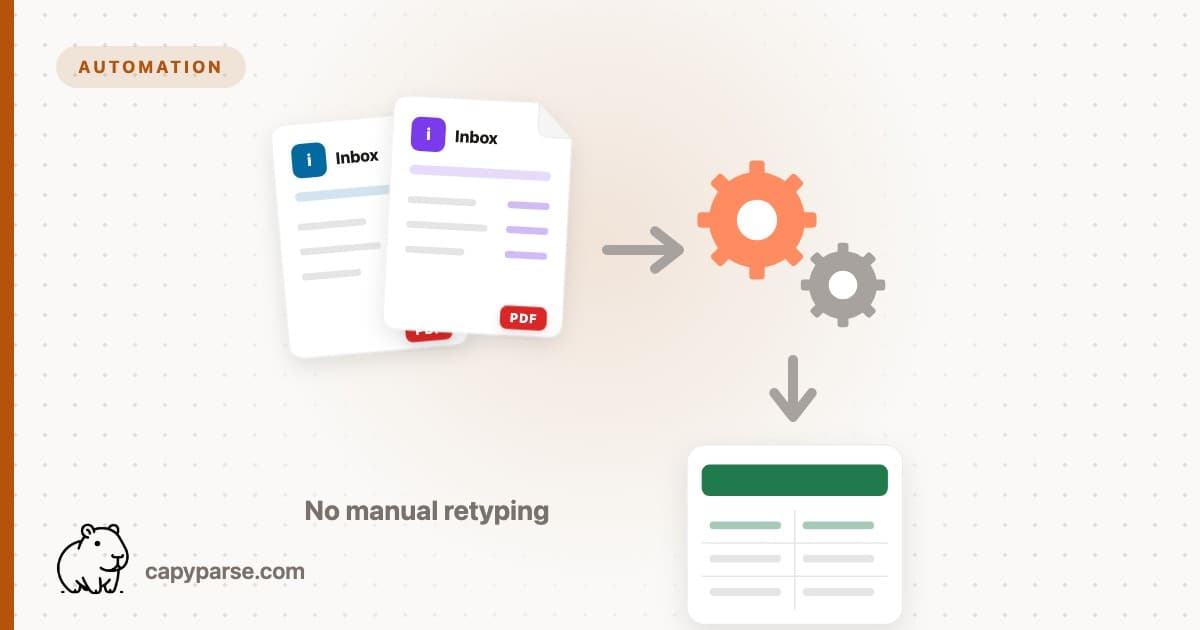
Automation doesn't mean replacing your entire workflow. It means replacing the slowest, most error-prone part (the manual data entry) with AI-powered extraction.
Collect PDFs from Clients
This part stays the same. Clients email statements, upload to your portal, or drop files in a shared folder. Nothing changes on their end.
Upload to CapyParse
Drag and drop one or more PDF statements into CapyParse. You can batch-upload multiple statements at once, from different banks, different clients, different months. They're processed in parallel.
AI Extracts All Transactions
Within seconds, the AI reads the entire statement and extracts every transaction: dates, descriptions, amounts (debits and credits), and running balances. It works across any bank format without templates or manual configuration. Each field includes a confidence score so you can see at a glance what's solid and what might need a second look.
Review and Export
Review the extracted transactions in a clean table. Edit any fields that need correction. Then export as CSV, Excel (XLSX), or QBO, whichever format your accounting software needs. You can also edit descriptions, categories, or amounts before exporting.
Import into Accounting Software
Take the exported file and import directly into QuickBooks, Xero, FreshBooks, Wave, Sage, or whatever you use. QBO files import natively into QuickBooks. CSV works with virtually everything. The whole process, from upload to import, takes under 2 minutes per statement.
You're no longer typing transactions. You're reviewing them. That shift, from data entry to data review, is what makes this work. Reviewing a pre-populated table of 40 transactions takes 60 to 90 seconds. Typing those same 40 transactions takes 15 to 20 minutes. The math isn't close.
How Much Time Does Automation Save?
Here are the numbers for a firm managing 20 clients, each providing one bank statement per month:
| Metric | Manual Process | Automated Process |
|---|---|---|
| Time per statement | 15 minutes | 2 minutes |
| Statements per month (20 clients) | 20 | 20 |
| Monthly time | 5 hours | 40 minutes |
| Annual time | 60 hours | 8 hours |
| Annual time saved | 52 hours per bookkeeper | |
| Typical error rate | 2% to 5% | Less than 1% |
That's 52 hours per year, more than a full work week, recovered per bookkeeper. A team of three? That's 156 hours. At $50 to $75/hour billing rate, the dollar value is $7,800 to $11,700 annually. And this is conservative: just 20 clients with one statement each per month. Firms handling multiple accounts per client, credit card statements, or historical catch-up work see even bigger savings.
The error reduction matters just as much, even if it's harder to quantify. Every reconciliation error that doesn't happen is a downstream correction you don't need to make.
Start Automating Your Bank Statement Processing
Upload your first statement and see the extracted data in seconds. No credit card required.
View Pricing PlansWhich Accounting Software Works with Automated Exports?
CapyParse exports as CSV, Excel, and QBO. Between those three formats, you can import into virtually any accounting application.
QuickBooks Online and Desktop
QuickBooks is the most common destination. The fastest path is to export as a QBO file, which QuickBooks recognizes natively. Go to File > Import > Web Connect Files, select the QBO file, and the transactions appear in your bank feed ready for matching. No reformatting, no column mapping. For a full walkthrough, see our guide on importing bank statements into QuickBooks.
Xero
Xero accepts CSV imports through its bank statement import feature. Export from CapyParse as CSV, then upload in Xero under Accounting > Bank Accounts > Import a Statement. Xero maps the columns automatically in most cases. See our Xero bank statement import guide for details.
FreshBooks
FreshBooks supports CSV imports for bank transactions. Export as CSV, then upload through the banking import interface. Our FreshBooks import guide covers the exact steps and column mapping.
Wave
Wave's free accounting software accepts CSV and OFX imports. Export as CSV and upload through Wave's bank connection interface. See importing bank statements into Wave for the walkthrough.
Sage
Sage Accounting and Sage 50 both support CSV imports. Export from CapyParse in CSV format and use Sage's import wizard to map columns. Our Sage import guide covers both versions.
Google Sheets
If you review data in Google Sheets before importing into accounting software, or if Sheets is part of your bookkeeping process, you can export from CapyParse as CSV or Excel and open it directly. See our Google Sheets import guide for tips.
Handling Scanned and Photographed Statements
Not every client provides clean digital PDFs. Some, especially those with older accounts, smaller community banks, or international banking relationships, send scanned paper statements or phone photos. No selectable text in the PDF. The data is just pixels.
CapyParse handles this with a combination of OCR and AI-powered extraction. The OCR layer converts the image to machine-readable text, then the AI layer interprets the layout, finds the transaction table, and extracts each field. This two-step process is significantly more accurate than traditional OCR alone, which struggles with the dense tabular layouts in bank statements.
For best results, ask clients to scan at 200 DPI or higher, keep the page straight, and avoid heavy creases or shadows. Even with imperfect scans, AI extraction typically hits 95%+ accuracy. Just pay closer attention to confidence scores during review. For a deeper dive, see our guide on converting scanned bank statements to CSV.
Tips for Getting Started
Adopting a new tool in a busy practice can feel risky, especially with client data. Four practical tips to make it smooth:
Start with Your Highest-Volume Clients
Pick the three to five clients who generate the most work each month. That's where automation delivers the most visible savings. Once you've proven the workflow on your heaviest hitters, rolling it out to everyone else is easy.
Standardize How Clients Send Statements
Ask clients to download statements as PDF from online banking whenever possible. Digital PDFs give the highest accuracy and fastest processing. If they must send paper, ask them to scan rather than photograph. A quick email template explaining your preference saves a lot of friction.
Use QBO Export for QuickBooks
If your firm uses QuickBooks (and most do), always export as QBO rather than CSV. QBO maps directly to QuickBooks' bank feed import: zero column mapping, zero reformatting. It's the fastest path from PDF to posted transactions.
Run a Parallel Check for the First Month
For your first month, process each statement with CapyParse and compare against what you'd have entered manually. This builds confidence in the tool's accuracy. After a month, most firms find they can trust the output with just a quick scan of confidence scores.
Common Objections (And Why They're Wrong)
We hear the same concerns from every firm we talk to. They're understandable, since you're dealing with client financial data. But each one has a straightforward answer.
"My clients' statements are too messy for automation."
This is actually where automation shines. AI extraction doesn't rely on templates or fixed-position parsing. It reads the entire page layout, identifies transaction tables regardless of formatting, and adapts to whatever the bank throws at it. Chase, Bank of America, regional credit unions, it handles them all. Messy statements that'd take you 20 minutes to manually decipher take the AI 15 seconds.
"I need to see every transaction before it goes into the books."
Good, and you still can. Automation doesn't skip the review step. It replaces the data entry step. After CapyParse extracts the transactions, you see them in a clean table with confidence scores. You can edit any field, delete transactions, or add notes before exporting. The difference is you're reviewing pre-populated data instead of entering it from scratch.
"The bank feed already does this."
Bank feeds are great when they work. But every accountant has run into their limitations. They typically only go back 60 to 90 days, so they can't help with historical data. They don't work for closed accounts. They require the client to authorize a live connection, which some clients resist. And if a client banks at a smaller institution, the feed might not be available at all. PDF-based automation fills all of those gaps. Any bank, any time period, any account status. All you need is the PDF.
Frequently Asked Questions
How accurate is automated bank statement processing?
AI-powered tools like CapyParse hit above 99% accuracy on digital PDFs. The AI reads the full page layout, identifies transaction tables, and extracts dates, descriptions, amounts, and running balances. Every extraction includes confidence scores so you can quickly spot anything that needs review. For scanned statements, accuracy depends on image quality but typically exceeds 95% with clear scans.
Can I automate processing for scanned bank statements?
Yes. CapyParse uses advanced OCR combined with AI extraction to handle scanned and photographed statements. The system converts the image to machine-readable text, then applies the same extraction logic used for digital PDFs. For best results, scan at 200 DPI or higher, keep pages straight, and avoid heavy shadows or creases.
How long does it take to process a bank statement automatically?
Most statements are done in under 30 seconds. A typical single-page statement with 20 to 40 transactions takes about 10 to 15 seconds. Multi-page statements may take 20 to 45 seconds. Batch uploads run in parallel, so uploading 10 statements at once is nearly as fast as one. Total time including upload, extraction, review, and export is typically under 2 minutes per statement.
What formats can I export the extracted data to?
CSV, Excel (XLSX), and QBO. CSV works with spreadsheets and most accounting software. Excel preserves formatting for review and archival. QBO imports directly into QuickBooks Online and Desktop without column mapping. Between these three, you can import into QuickBooks, Xero, FreshBooks, Wave, Sage, and virtually everything else.
Is automated bank statement processing secure?
Yes. CapyParse processes all files over encrypted connections using TLS. Uploaded documents are processed in volatile memory and aren't permanently stored. The extracted data is available for download and then purged. Sensitive client financial data doesn't persist beyond the processing session.
Ready to Stop Re-Keying Bank Statements?
Join hundreds of accounting firms that have automated their bank statement processing with CapyParse. Upload your first PDF and see the results in seconds.
Get Started FreeRelated Articles
Bank Statement Conversion for Accountants and Bookkeepers
A comprehensive guide to converting bank statement PDFs to CSV, Excel, and QBO for accounting workflows.
How to Extract Data from Bank Statements
Learn the best methods for pulling transaction data out of PDF bank statements quickly and accurately.
Convert Scanned Bank Statements to CSV
How to handle scanned and photographed bank statements using OCR and AI-powered extraction.
How to Categorize Bank Statement Transactions
Organize and categorize extracted bank transactions for cleaner bookkeeping and faster reconciliation.