
How to Reconcile Bank Statements: Step-by-Step Guide (2026)
Published on March 10, 2026 by CapyParse Team
Try it with your statement
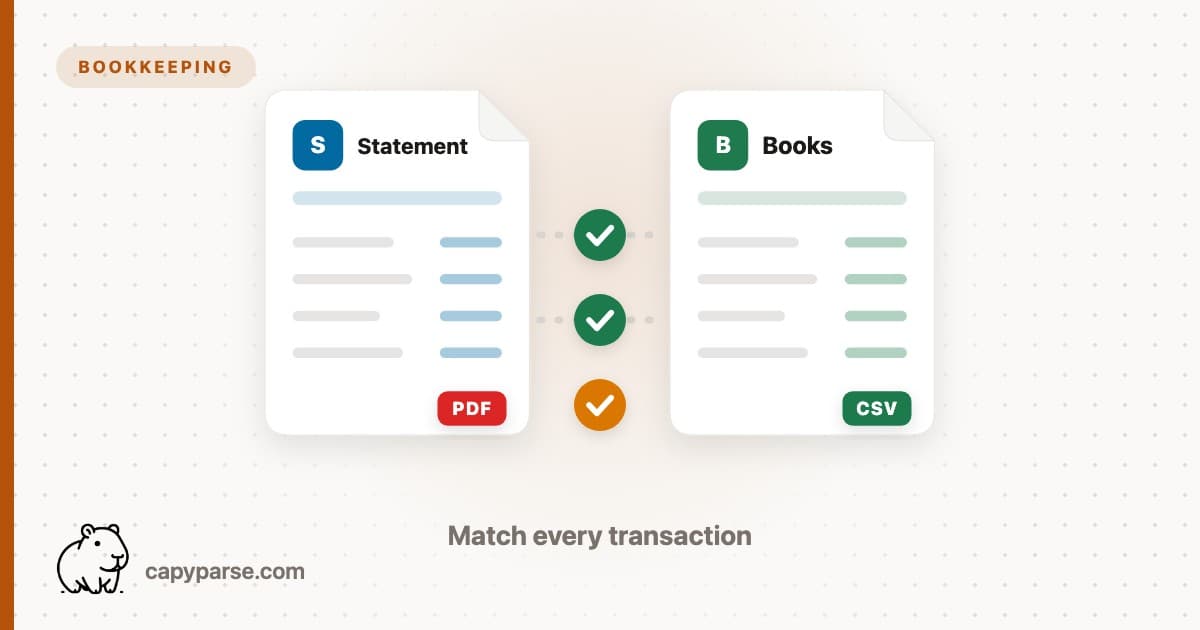
Drop a PDF statement below to see the transactions extracted. Free, no signup.

Click to upload or drag & drop
your bank statement PDF
Select PDF filePDF only · up to 6 pages · 10 MB max
Need more pages or the Excel and QBO exports? Open the converter
Bank reconciliation is the process of comparing your internal financial records, such as your accounting ledger or bookkeeping software, against your bank statement to make sure they match. It is one of the most important financial controls for any business. Reconciliation catches errors, detects unauthorized transactions or fraud, and surfaces missing entries before they compound into bigger problems. Whether you run a one-person operation or manage finances for a large organization, regular reconciliation keeps your books accurate and your cash flow visible.
Quick Summary
- Bank reconciliation compares your internal records to your bank statement to find and fix discrepancies.
- Most businesses should reconcile monthly. High-volume businesses benefit from weekly reconciliation.
- Three approaches: manual reconciliation in Excel, built-in tools in accounting software (QuickBooks, Xero), or automated with CSV conversion tools.
- CapyParse helps by converting PDF bank statements to clean CSV files, making it easy to compare transactions in a spreadsheet or import them into your accounting software.
Why Bank Reconciliation Matters
Skipping reconciliation is one of the fastest ways to lose control of your finances. Here is what regular reconciliation protects you from:
- Catch errors before they compound: A missed entry or transposed number in January becomes a much bigger problem by December if no one catches it.
- Detect unauthorized transactions or fraud: Reconciliation is often the first place where fraudulent charges, unauthorized withdrawals, or payroll discrepancies surface.
- Ensure books are audit-ready: Auditors check that your bank balances match your ledger. Regular reconciliation means you are always prepared.
- Identify timing differences: Outstanding checks, pending deposits, and in-transit items are normal, but you need to know about them to understand your true cash position.
- Maintain accurate cash flow visibility: You cannot make good financial decisions if you do not know how much cash you actually have. Reconciliation closes the gap between what your books say and what the bank says.
When to Reconcile
The right frequency depends on your transaction volume and how tightly you need to track your cash position.
Monthly (Standard)
The most common cadence for most businesses. Reconcile within a few days of receiving your bank statement each month. This balances thoroughness with efficiency.
Weekly (High Volume)
If you process dozens or hundreds of transactions per day, such as e-commerce, retail, or hospitality businesses, weekly reconciliation helps you catch issues faster.
Quarterly (Minimum)
If you are a very small business with few transactions, quarterly reconciliation is the absolute minimum. Any less frequent than this and errors can go undetected for too long.
Before Key Events
Always reconcile before audits, tax filing, applying for loans, or making major financial decisions. These are moments where accuracy matters most.
Step-by-Step Manual Reconciliation
Regardless of which tools you use, the fundamental reconciliation process follows the same steps. Here is the full workflow:
Step 1: Gather Your Bank Statement and Internal Records
Collect your bank statement for the period (usually one month) and your corresponding internal records. This could be your general ledger, your cash book, or a report from your accounting software. Make sure both cover the same date range.
Step 2: Compare Opening Balances
Verify that the opening balance on your bank statement matches the closing balance from last month's reconciliation. If they do not match, resolve that discrepancy first before proceeding.
Step 3: Check Off Matching Transactions
Go through each transaction on the bank statement and find the corresponding entry in your internal records. Mark each pair as matched. This is the core of the reconciliation process and where most of the time is spent.
Step 4: Identify Discrepancies
After matching, you will have items left over on one or both sides. Common discrepancies include deposits in transit (recorded in your books but not yet on the bank statement), outstanding checks (issued but not yet cashed), bank fees or interest you have not recorded, and outright errors on either side.
Step 5: Adjust Your Records
For items the bank has recorded but you have not (service fees, interest, automatic payments), add them to your books. For errors in your records, correct them. Do not adjust the bank statement. Instead, note timing differences like outstanding checks and deposits in transit as reconciling items.
Step 6: Verify the Closing Balance Matches
After all adjustments, your adjusted book balance should equal the adjusted bank balance. If they match, the reconciliation is complete. If they do not, go back through the unmatched items and look for the remaining difference.
Common Reconciliation Errors
Most reconciliation discrepancies fall into one of four categories. Knowing what to look for speeds up the process significantly.
Timing Differences
Checks written but not yet cashed by the recipient, deposits mailed but not yet processed by the bank, and electronic payments initiated near month-end. These are normal and expected. They resolve themselves in the next period.
Bank Fees and Charges
Monthly service fees, overdraft charges, wire transfer fees, and returned check fees. Banks deduct these automatically, but they often do not appear in your books until you reconcile. Record them as expenses when you find them.
Duplicate Entries
The same transaction recorded twice in your books. This happens when a payment is entered manually and also imported from a bank feed, or when a check is recorded at the time it is written and again when it clears.
Missing Entries
Transactions that appear on the bank statement but were never recorded in your books. Common examples include automatic subscription payments, recurring charges, and direct debits set up through the bank rather than your accounting system.
Method 1: Manual Reconciliation in Excel or Google Sheets
The most straightforward approach is to do the reconciliation in a spreadsheet. This works well when you have a small number of accounts and relatively low transaction volume.
How It Works
Paste or import your bank statement data into one sheet and your ledger data into another. Then use VLOOKUP, INDEX/MATCH, or conditional formatting to identify transactions that appear on one side but not the other. Sort both lists by date and amount to make visual comparison easier.
Pros and Cons
- Free: No additional software needed. Excel and Google Sheets are tools most businesses already have.
- Flexible: You can customize the layout, add notes, and build formulas tailored to your workflow.
- Slow at scale: Manually comparing hundreds of transactions is tedious and time-consuming.
- Error-prone: Manual processes are inherently susceptible to human error, especially with large data sets.
If your bank only provides PDF statements, you will need to convert them to CSV first. See our guide on how to import bank statements into Google Sheets for detailed steps.
Method 2: Reconcile in Accounting Software
Most accounting platforms have built-in reconciliation tools that simplify the matching process. If you already use one of these platforms, this is often the most efficient option.
QuickBooks
QuickBooks Online and Desktop both offer a dedicated reconciliation workflow. Go to Banking, then Reconcile. Enter the statement ending balance and date from your bank statement, then check off each transaction that matches. QuickBooks calculates the difference in real time and flags when you reach zero. For a full walkthrough, see our QuickBooks import guide.
Xero
Xero builds reconciliation directly into its bank feeds feature. When you connect your bank account, Xero automatically imports transactions and suggests matches against your recorded entries. You review each suggestion and confirm or correct it. This makes reconciliation a continuous process rather than a monthly event. For setup instructions, see our Xero import guide.
When Accounting Software Works Best
Built-in reconciliation is ideal when you already use the software for your daily bookkeeping and have bank feeds connected. The transactions flow in automatically, and the matching happens with minimal manual effort. The limitation is when bank feeds are unavailable, when you need to reconcile historical statements, or when you are onboarding a new client whose data is not yet in the system.
Method 3: Automated with CSV Conversion Tools
When bank feeds are unavailable, when you are working with older or archived statements, or when you need to reconcile outside of your accounting software, converting PDF statements to CSV is the fastest path forward.
How It Works
Upload your bank statement PDF to a conversion tool like CapyParse, which extracts the transaction data and outputs a clean CSV file. Import that CSV into your spreadsheet or accounting software and reconcile from there. The conversion eliminates the manual data entry step entirely.
When This Approach Shines
- Catch-up bookkeeping: When you need to reconcile months or years of backlogged statements, converting them all to CSV and processing them in batch is far faster than manual entry.
- Audit preparation: Auditors often request bank statements. Having them in CSV format makes it easy to cross-reference against your ledger.
- Client onboarding for accountants: When taking on a new client, you often receive a stack of PDF statements. Converting them to CSV lets you import everything into your accounting platform quickly. See our guide on bank statement conversion for accountants.
For more on downloading and converting bank statements, see how to download bank statements as CSV and how to extract data from bank statements.
Speed Up Your Reconciliation
Convert any bank statement PDF to clean CSV in seconds. No manual data entry, no formatting headaches.
Try CapyParse Free10 free pages. No credit card required. View pricing for higher volumes.
How CapyParse Speeds Up Reconciliation
CapyParse is purpose-built for converting bank statement PDFs into structured, import-ready data. Here is how it fits into a reconciliation workflow:
- Convert any bank's PDF statement to clean CSV: Upload statements from any bank and get consistently formatted output with dates, descriptions, and amounts in separate columns.
- Batch process multiple months or accounts at once: Upload an entire year of statements or statements from multiple accounts and process them all in a single session.
- Export as CSV for Excel/Sheets or QBO for direct QuickBooks import: Choose the format that fits your workflow. CSV works with any spreadsheet or accounting tool. QBO imports directly into QuickBooks without any mapping.
- Works with scanned statements too (OCR): Older statements, faxed copies, and photographed documents are handled with AI-powered optical character recognition. No text layer required.
Frequently Asked Questions
How often should I reconcile bank statements?
Most businesses should reconcile bank statements monthly, ideally within a few days of receiving the statement. High-volume businesses may benefit from weekly reconciliation. At minimum, reconcile quarterly and always before tax filing, audits, or major financial decisions.
What is the most common cause of reconciliation discrepancies?
Timing differences are the most common cause. These include outstanding checks that have not yet cleared the bank, deposits in transit, and automatic payments or fees that have not been recorded in your books. Bank service charges and interest that post at month-end also frequently cause mismatches.
Can I reconcile bank statements in QuickBooks?
Yes. QuickBooks Online and Desktop both have built-in reconciliation tools. Go to Banking, then Reconcile, enter your statement ending balance and date, and check off each transaction that matches. QuickBooks highlights any difference between your records and the statement. For detailed steps, see our QuickBooks import guide.
What do I do if my bank statement and records don't match?
First, check for timing differences like outstanding checks or deposits in transit. Then look for bank fees, interest, or automatic payments you may not have recorded. Check for duplicate or missing entries in your books. If the discrepancy persists, compare transactions line by line. Common culprits include transposed numbers, transactions recorded in the wrong amount, and items posted to the wrong account.
How does converting bank statements to CSV help with reconciliation?
Converting bank statement PDFs to CSV lets you import the data directly into Excel, Google Sheets, or accounting software. This eliminates manual data entry errors, makes it easy to sort and filter transactions, and lets you use formulas like VLOOKUP to match transactions automatically. It is especially useful for reconciling older statements or multiple accounts at once.
Can I reconcile credit card statements the same way?
Yes. The reconciliation process for credit card statements is the same as for bank statements. Compare each charge, payment, and credit on the statement against your records. The main difference is that credit card statements use opposite sign conventions, where charges are positive and payments are negative. CapyParse handles both bank and credit card statement conversions.
Start Reconciling Faster Today
Upload any bank statement PDF and get clean, structured CSV data in seconds. No manual data entry required.
Try CapyParse Free10 free pages. No credit card required. View pricing for higher volumes.
Related Articles
Import Bank Statements into QuickBooks
Step-by-step guide to importing CSV and QBO files into QuickBooks Online and Desktop.
Import Bank Statements into Xero
How to import bank statement CSV files into Xero for reconciliation.
How to Download Bank Statements as CSV
Download options for major banks and what to do when CSV is not available.
Extract Data from Bank Statements
Three methods compared: manual copy-paste, open-source tools, and AI-powered extraction.