
Fix it before
it reaches the books.
Correct dates, signs and payee names across a statement or a whole year, ask the AI for changes in plain English, and undo anything.
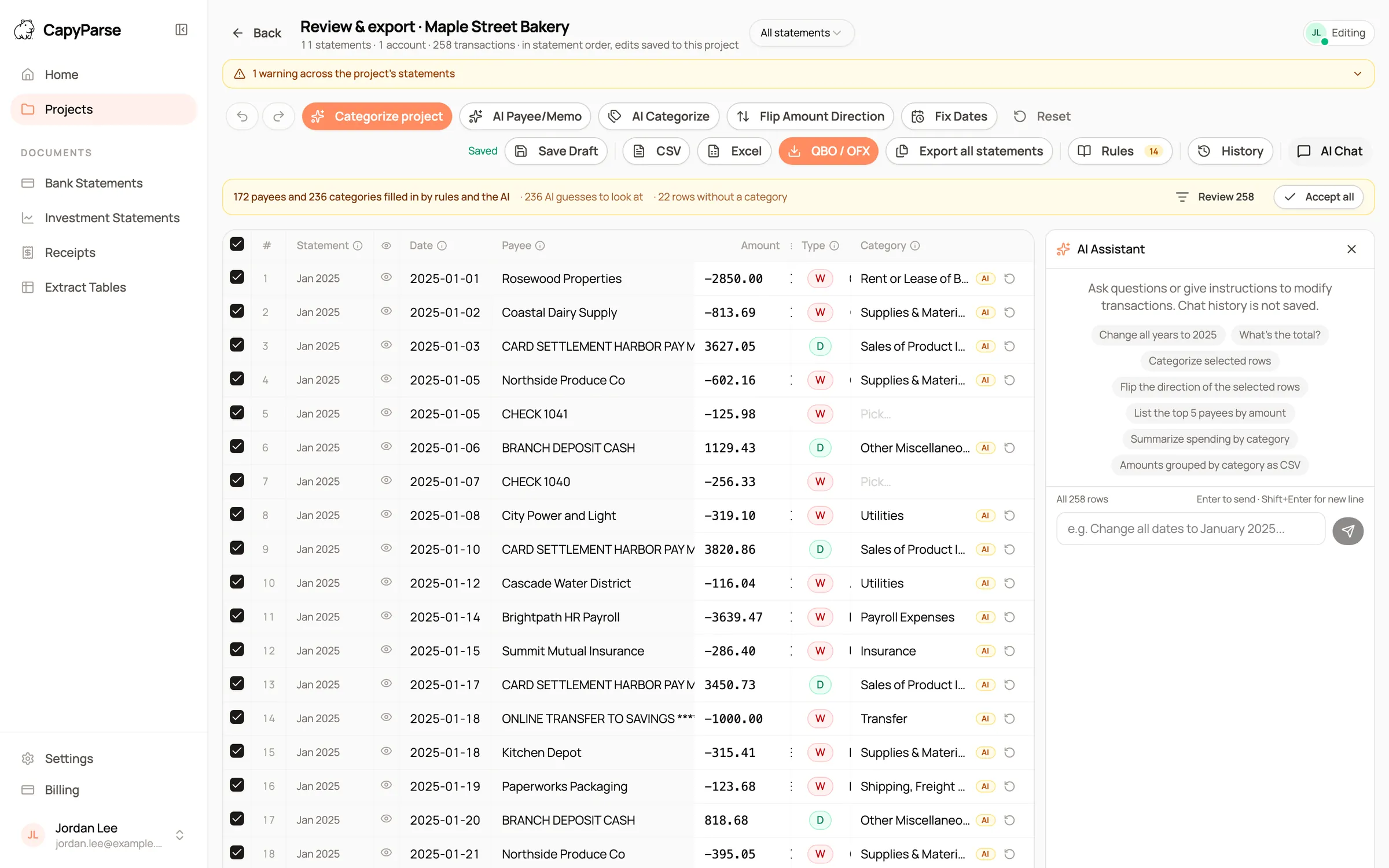
Shown with sample statements for a fictional business.
Cleanup that used to happen in Excel. Now it happens before the import, with a preview and an undo.
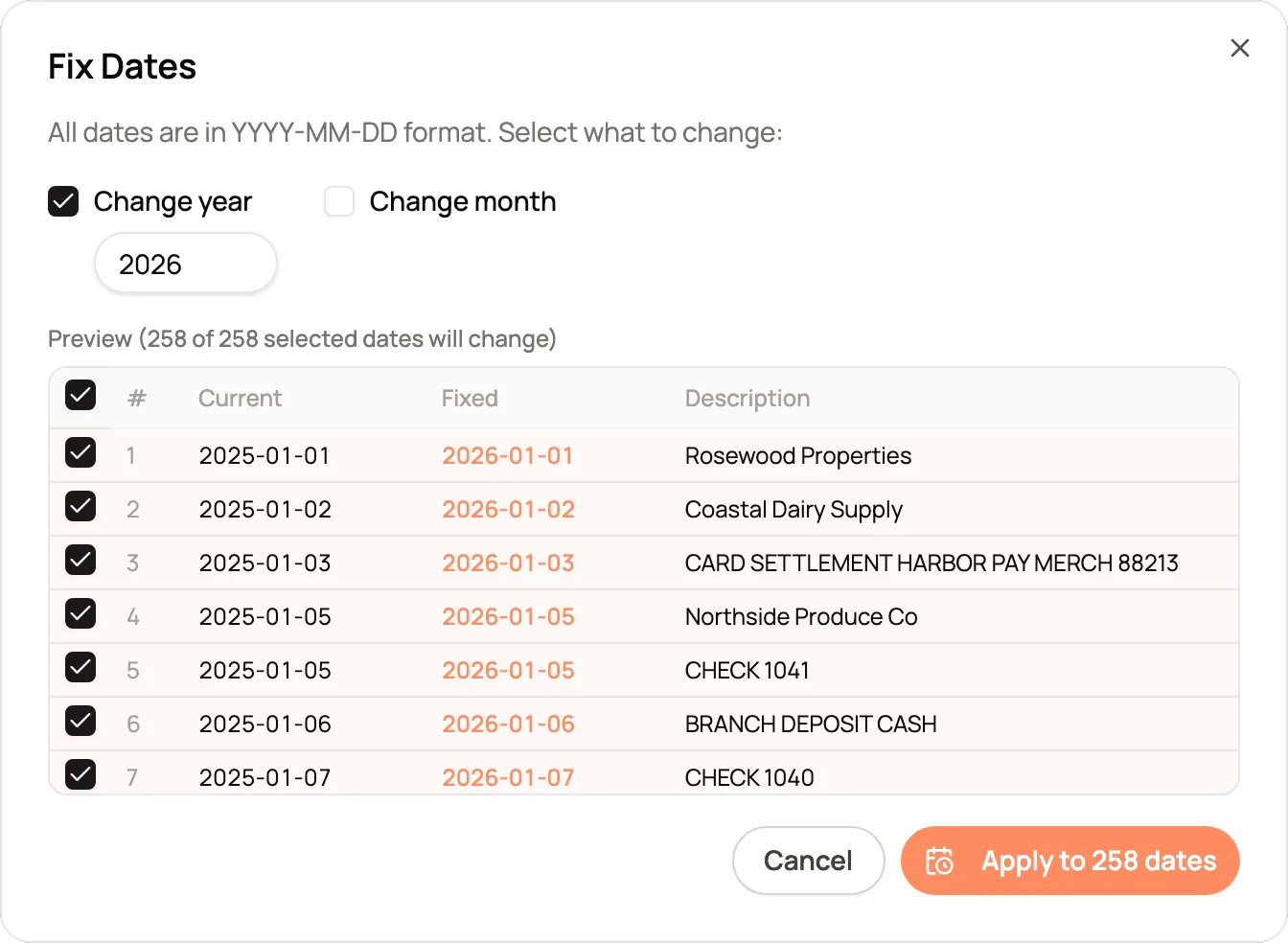
Dates without a year. Set the year or the month on hundreds of rows at once, with every change previewed first.
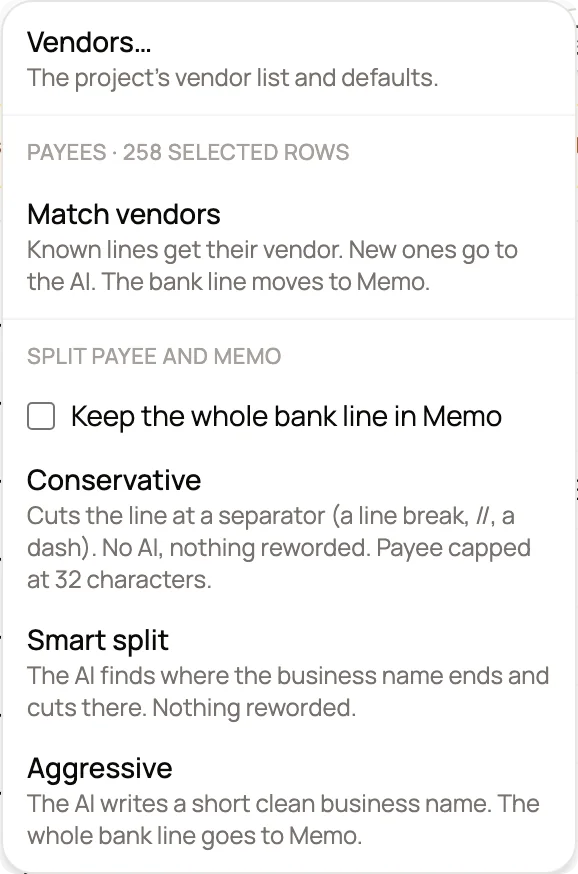
Payee and memo, split your way. Cut at separators, let the AI find where the business name ends, or write a short clean name.

Wrong-way amounts, flipped. Flip Amount Direction corrects deposits that came out as withdrawals, on the rows you choose.
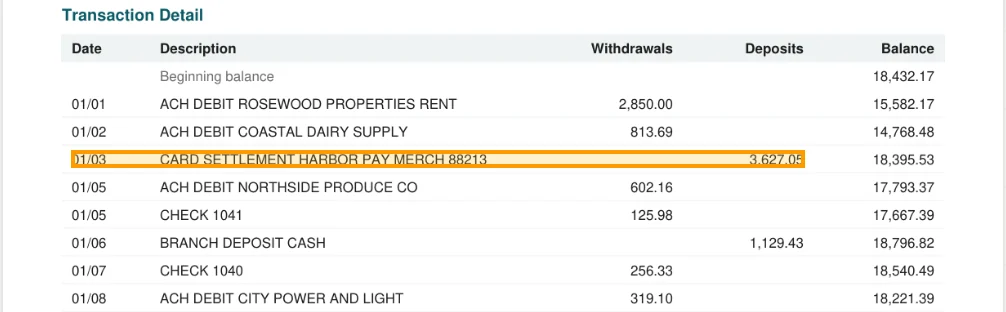
The source line, one click away. The eye icon on every row previews it on the original page, so you never hunt through the PDF.
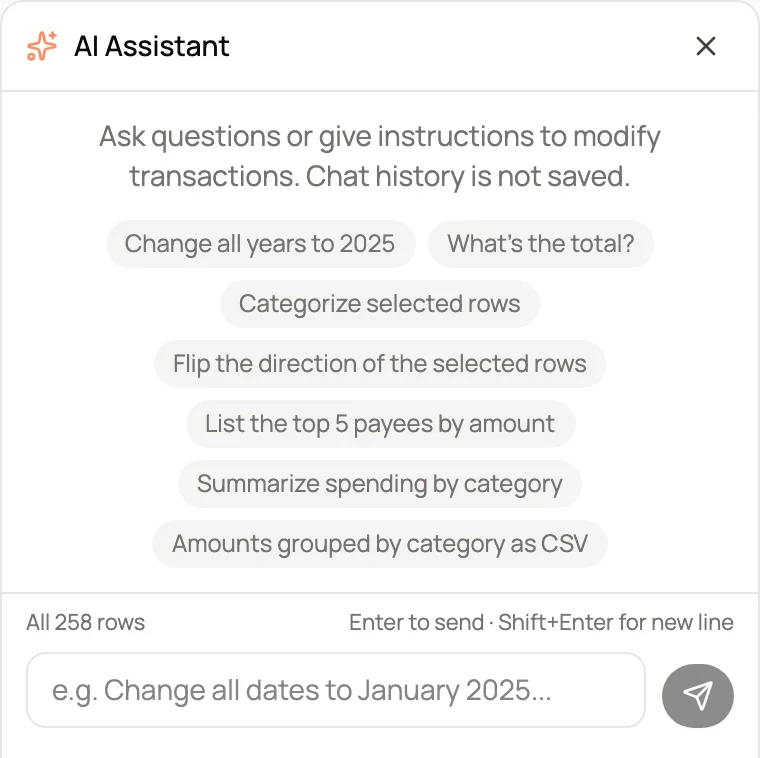
An assistant that knows the rows
Ask for the total paid to a vendor, the top payees or spending by category. Ask it to change every year to 2025 and it makes the change.
- Answers from the rows in view
- Changes you can undo
- Chat history is not saved
Made for preparer and reviewer
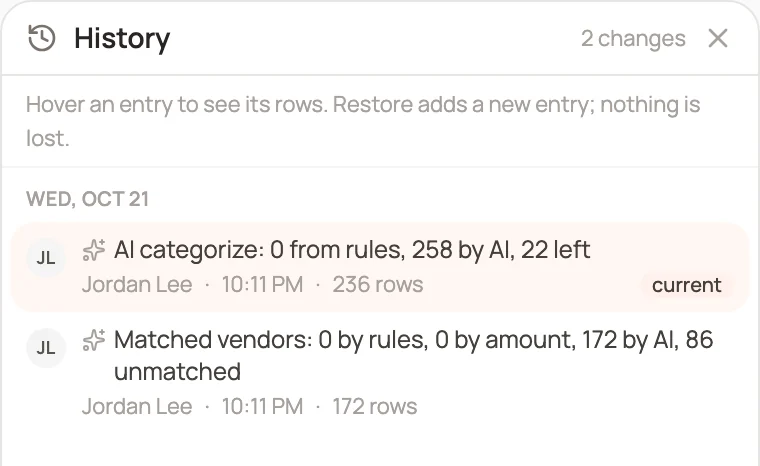
One person edits at a time while the team sees the project read-only. Name a version to mark the file that went to the client.
- Take over editing with one click
- Every change attributed
- Named versions you can restore
The fixes bookkeepers make most. Each one takes a step, not an afternoon.
Statement spans December and January?
Dates printed without a year get the right one in a single step.
Card charges with the wrong sign?
Flip the selected rows before QuickBooks ever sees them.
Payees buried in codes?
DEBIT CARD PURCHASE KITCHEN DEPOT becomes Kitchen Depot, with the bank line kept in the memo.
Client asking questions?
Ask the assistant for the top payees or spending by category, with the rows right there.
What changes. The same job, before CapyParse and after.
Without CapyParse
With CapyParse
Fix dates and signs with spreadsheet formulas
Bulk fixes with a preview
Trim payee names one cell at a time
Payee and memo split across the year
Save copies to keep a way back
Undo, redo and a restorable history
Correct the import inside QuickBooks
Import a file that is already right
Questions
About review editor in CapyParse.
Are my edits saved?
Yes. Edits save to the statement or the project as you work, and every export includes them. Come back days later and pick up where you left off.
Can I undo an AI change?
Yes. Undo and redo cover every edit, each AI categorize run can be undone from its notice, and the project history can restore any earlier point.
What can the AI Assistant do?
It answers questions about the transactions in view, such as totals or the top payees, and it makes changes you describe, such as changing years, categorizing the selected rows or flipping their direction. Chat history is not saved.
Can two people edit the same project?
One person edits at a time, so changes never collide. Everyone else sees the project read-only and can take over editing with one click.
Does editing change the original statement?
No. The PDF and the converted rows stay as they were, and your edits are saved as a draft on top of them. Reset clears the edits, and in a project even a reset is recorded in the history, so it can be restored.
Can I work on one statement instead of the whole project?
Yes. Open any statement on its own from the statement view, or pick one statement in the project review to narrow the grid to it.
More from CapyParse
Try it on your own statements.
Your first 10 pages are free, with no card needed.