
Best Free Bank Statement Converters (2026)
Published on August 3, 2026 by CapyParse Team
Try it with your statement
Drop a PDF statement below to see the transactions extracted. Free, no signup.

Click to upload or drag & drop
your bank statement PDF
Select PDF filePDF only · up to 6 pages · 10 MB max
Need more pages or the Excel and QBO exports? Open the converter
Search for a free bank statement converter and you will get dozens of results, all promising the same thing. Very few of them are free in the way you probably mean it. Some are trials, some cap you at a page or two, some are perfectly free but cannot read a scanned document, and a handful are anonymous sites that ask you to upload your bank statement and tell you nothing about where it goes.
We went through the current crop and sorted them by what you actually get without paying. Prices and limits below were checked in August 2026.
The short answer
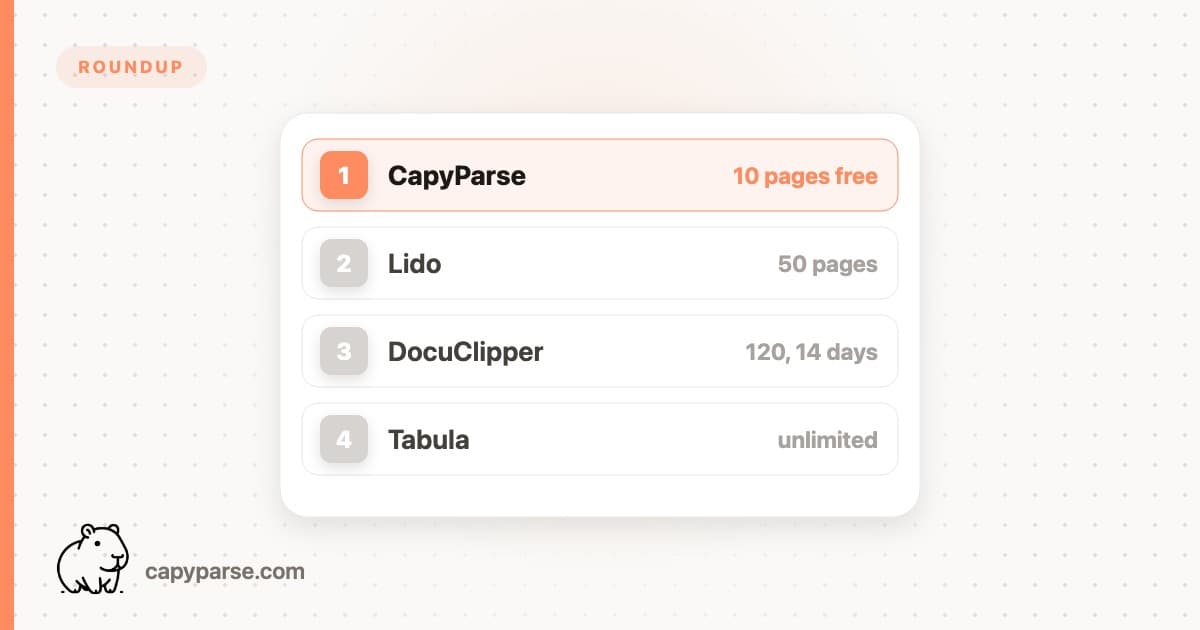
If your statement is a scan or a photo, you need OCR, and the largest free allowances are Lido (50 pages, no card) and DocuClipper (120 pages inside a 14-day trial).
If your statement is a native PDF and you are comfortable with a bit of manual work, Tabula is free forever and Excel already has a PDF importer built in.
How we compared
Four questions decide whether a free tool is useful to you:
- Is the free part permanent or a trial? A 14-day trial is great for a one-time cleanup and useless in March if you needed it again in April.
- Does it do OCR? This single question eliminates most free tools, because scanned statements have no text layer to read.
- What comes out the other end? A CSV is fine for Excel. QuickBooks Online wants QBO, QFX, OFX, or a CSV with exactly three or four columns.
- Who is on the other end of the upload? You are sending an unredacted record of everything you spent money on. It is worth ten seconds on the About page.
Quick comparison
| Tool | What you get free | Expires? | Scans | Formats |
|---|---|---|---|---|
| Lido | 50 pages, no card | No stated expiry | Yes | Excel, CSV |
| DocuClipper | 120 pages | 14 days | Yes | Excel, CSV, QBO, OFX, QIF, IIF |
| Tabula | Unlimited | Never | No | CSV, TSV, JSON |
| Excel Power Query | Unlimited | Never | No | Excel |
| Unstructured | 15,000 pages/mo | Resets monthly | Yes | JSON (code required) |
| Acrobat Pro trial | Full product | 7 days | Yes | Excel, CSV |
| No-signup AI sites | Varies, often uncapped | n/a | Usually | CSV, Excel |
| CapyParse (ours) | 10 pages, no card | No | Yes | CSV, Excel, QBO, OFX, QFX |
The seven options in detail
1. Lido: 50 free pages, spreadsheet output only
Lido hands out 50 free pages with no card, which is the most generous non-expiring-style allowance we found. It handles scanned files, and if a result comes back wrong you can re-run the document within 24 hours without spending more pages.
The limitation is the output. Lido exports to Excel and CSV, so if your destination is QuickBooks Desktop or anything else that wants a QBO or OFX file, you have a second conversion step ahead of you. The paid Standard plan is $29 a month for 100 pages and one user.
Pros
- 50 free pages without a card
- Free re-processing inside 24 hours
Cons
- No QBO, OFX, or QFX export
- Paid plan is single-user at $29/mo
Best for: a one-off job that ends in a spreadsheet.
2. DocuClipper trial: biggest allowance, shortest window
DocuClipper's trial gives you 120 pages and does not ask for a card, but the window is 14 days. That is a lot of statements if you have a backlog waiting and nothing at all if you were hoping for an ongoing free option.
Format coverage is the strongest part of the offer. Excel, CSV, QBO, OFX, QIF, and IIF are all available, which covers QuickBooks Online, QuickBooks Desktop, and Quicken without a second tool. After the trial, the Starter plan is $20 a month for 60 pages, so heavier months push you up to the $111 Business tier quickly.
Pros
- 120 pages, no card required
- Widest export format list here
Cons
- Expires after 14 days
- Entry plan drops to 60 pages a month
Best for: clearing a backlog in a single fortnight. Our full DocuClipper review has the details.
3. Tabula: free forever, native PDFs only
Tabula is the only tool here that is free in the plain sense of the word. It is open source, it runs on your own machine, nothing is uploaded anywhere, and there is no page limit. For a native PDF with clean column rules, you draw a box around the table and it gives you a CSV.
Two caveats. It does no OCR whatsoever, so scans and photos are out. And the desktop app has not been updated since 2018, although the underlying libraries (tabula-java and tabula-py) are still maintained. Expect to spend time on column selection and on statements where the description wraps onto a second line.
Pros
- Genuinely free, no limits
- Runs locally, nothing leaves your computer
Cons
- No OCR, so no scans
- Manual work per document
- Desktop app unchanged since 2018
Best for: privacy-sensitive work on clean digital PDFs, and anyone who enjoys a bit of fiddling.
4. Excel Power Query: free if you already pay for Office
Excel has had a PDF importer since 2020 and a lot of people have never noticed it. Go to Data, then Get Data, then From File, then From PDF, and Excel will show you every table it can find in the document.
Worth knowing before you get excited: this only exists in Excel for Microsoft 365 on Windows. It is not in Excel 2019, not in the standalone Excel 2021, and not on the Mac. It reads the text layer only, so scans return nothing. And on real statements it tends to split multi-line descriptions across rows and miss narrow columns, which means cleanup afterwards.
Pros
- No extra cost or new software
- Repeatable: refresh the query next month
Cons
- Windows and Microsoft 365 only
- No OCR, and messy on wrapped descriptions
Best for: a Windows user converting the same bank's statement every month. Our PDF to CSV guide walks through the steps.
5. Unstructured: 15,000 free pages if you can write code
This one is off the beaten path for a bookkeeper but hard to beat on volume. Unstructured's free tier gives you 15,000 pages a month with no card, and it resets every month. Beyond that it is three cents a page.
What you get back is structured JSON describing the document, not a tidy transaction table. Turning that into rows with dates, descriptions, and signed amounts is your job. If that sentence sounded like a project rather than a feature, one of the tools above will get you home faster.
Best for: developers building a pipeline, not people converting statements by hand.
6. Adobe Acrobat Pro trial: seven days of everything
If you have exactly one statement to convert this week, Acrobat's 7-day trial does the job. Export to Excel is built in, OCR is included, and the results on well-behaved statements are decent.
Acrobat treats a bank statement as a generic table, so it has no idea that debits and credits are different things or that a running balance should reconcile. Expect to check the signs by hand. After the trial it is $19.99 a month on an annual plan, or $29.99 month to month, which is a lot to pay for statement conversion alone.
Best for: people who already have Acrobat and a native PDF.
7. The no-signup AI converters: read the fine print
A cluster of sites has appeared over the last two years offering unlimited free conversion with no account. Some are legitimate side projects. Others tell you nothing about who runs them, where the file goes, or how long it is kept.
There is also a quality issue that is easy to miss. Several of these sites pass your PDF to a language model and hand you whatever comes back. No arithmetic check against the closing balance, no flag when a row is dropped, no indication that page 3 produced nothing. The output looks confident and complete because there is nothing in the pipeline whose job is to tell you otherwise.
If you use one, do two things: check the totals against the statement's own closing balance, and count the transactions. Both take a minute and both catch the failure mode these tools are prone to.
Best for: throwaway documents where an error costs you nothing.
Where CapyParse fits
We make CapyParse, so it is not in the ranking above. Its free tier is 10 pages with no card and no expiry, and those pages include OCR for scans and phone photos plus every export format (CSV, Excel, QBO, OFX, and QFX). It suits anyone who wants to try a real statement from their own bank before paying, and you can review every transaction before you export. After the free pages, Starter is $29/mo for 150 pages.
Which one should you use?
You have a scan or a phone photo
Only the OCR tools apply. Start with Lido's 50 free pages or the DocuClipper trial, and skip Tabula and Excel entirely.
You need a QBO file for QuickBooks
DocuClipper exports QBO inside its free trial. Lido and Tabula do not.
The file cannot leave your computer
Tabula, or Excel Power Query if you are on Windows. Everything else is a cloud upload.
You have 40 statements and two weeks
DocuClipper's 120-page trial is the largest free block available, as long as you finish inside the window.
One check worth doing every time
Whatever tool you use, add up the converted amounts and compare the result to the difference between the opening and closing balance printed on the statement. If the two numbers do not match, a row is missing or a sign is flipped. This catches almost every serious conversion error in under a minute.
Frequently asked questions
Is there a completely free bank statement converter?
Tabula is genuinely free and open source with no page limit, but it has no OCR, so it only works on native PDFs where you can select the text. Excel Power Query is free if you already have Microsoft 365 on Windows, with the same text-layer restriction. Everything else described as free is either a trial, a free page allowance, or a site funded some other way.
How many free pages do bank statement converters give you?
As of August 2026: CapyParse includes 10 free pages with no card and no expiry date, Lido gives 50 free pages, and DocuClipper gives 120 pages inside a 14-day trial window. Trial allowances are larger but they expire, so they suit a one-off cleanup rather than ongoing monthly work.
Are free online bank statement converters safe?
It depends entirely on the operator. Before uploading, check that the site names a real company, publishes a privacy policy that says how long files are kept, and uses HTTPS. Several free no-signup converters list no company details at all. If you cannot tell who receives the file, treat the statement as published.
Can a free converter handle scanned bank statements?
Most cannot. Tabula, Excel Power Query, and most simple table extractors read only the PDF text layer, so a scan or a phone photo returns nothing. You need a tool with OCR, which is where the free options thin out quickly. CapyParse, DocuClipper, and Lido all run OCR inside their free allowances.
What is the catch with free bank statement converters?
The usual catches are a page cap, a time-limited trial, a watermark or truncated output, no scanned-PDF support, or output that is never checked for arithmetic errors. The last one is the expensive catch, because a missing row in a converted statement is much harder to spot than a paywall.